

Substack Pro Studio User Guide v1.1.x
Professional Substack Notes Management & Growth System

Canonical web version: Substack Pro Studio User Guide — Finn’sights (first published August 29, 2025). That post includes embedded video and the original user interface layout of version 1.0.19.
Extension version: 1.1.3
Last updated: March 27, 2026
This document is the maintained edition aligned with the current version; use it when you need accurate behavior for scheduling, backup, and settings as of the version above.
For new readers
Substack Pro Studio helps you to
Plan Notes on a weekly grid and Kanban,
Schedule them (including Substack’s native server-side drafts),
Sync published Notes with metrics, and
Analyze which Notes drive subscribers and clicks.
The AI Assistant integrates with your existing AI tools (copy prompts and inputs, and paste drafts back into a structured format).
You stay in control: the extension runs in your browser with your Substack session—no third-party service holds your password.
What changed since August 29, 2025 (for existing users)
Below is the list of changes, they are described in more details in respective sections.
Server-side scheduling — Scheduled Notes are stored as drafts on Substack with a publish time; posting at that time does not require your browser to stay open. Chrome alarms are used for reminders, UI updates, and optional local fallback (see §15 and §18).
Strict scheduling mode (default) — Reduces duplicate posted Notes when the Substack API misbehaves; optional “local browser scheduled posting” when draft scheduling fails (see: Settings → Data management → Scheduling).
Onboarding — Auto-detects the Substack account signed into Chrome and offers a publication picker (including custom domains); manual URL path and clearer offline/network errors; header profile chip and window title show which publication is active.
Editor — Substack article link cards,
“@mention”for mentioning other creators, video attachments, and historical video display, scheduling banner, reschedule, and content sync to the same server draft, empty-note warning, and auto-close after successful scheduling.Schedule and Analytics — Sticky weekday row, conflict resolution modes, up to 8 optimized time slots, Evergreen theme workflow, heatmap timezone and “Top Time Slots,” bulk delete / select all in Analytics, rows-per-segment controls.
Kanban — Metrics on Posted notes; drag from Posted → Draft copies content for reuse; failed schedule on drop surfaces an error; restacks and empty historical Notes are hidden from Schedule/Kanban.
Settings — Export / Import full extension backup (versioned JSON: notes + themes, slots, AI presets, sync-side settings, etc.); CSV import for bulk Notes importing; expanded CSV export columns; Import JSON re-syncs scheduled Notes to alarms.
Support — Support Center with cases, messaging, attachments, and new version notifications scoped by product.
Help — In-app help docs with links to respective menu items.
Historical note: Substack Pro Studio reached general availability on Gumroad after the original Substack post on August 29, 2025.
1. Introduction & Getting Started
What is Substack Pro Studio?
It’s a tool I built for Substack writers and creators, and it’s designed to transform your Notes into a revenue-generating system. It is based on insights from hundreds of chats and discussions with other creators who want to grow their newsletters, subscriber bases, and revenue.
It is a perfect tool for:
Substack Writers & Content Creators
Schedule Notes during peak audience hours—including via Substack’s server-side scheduling so the post can go live without your machine running
Analyze which content drives the most subscriptions
Never miss a posting opportunity with automated scheduling and clear failure states
Turn your best-performing content into subscriber magnets
Solopreneurs Building Online Businesses
Use Notes to funnel readers to your paid newsletter
Track which topics generate the most subscriber conversions
Automate consistent content posting without burning out
Build authority with strategic, theme-based posting
Bloggers Driving Newsletter Traffic
Cross-promote blog content through strategic Notes
Measure which Notes drive the most newsletter signups
Schedule consistent promotional content across time zones
Optimize posting times for maximum blog traffic
System Requirements
You need a Chrome browser and a Substack account with the Notes feature enabled (see Settings / Notes in your Substack account).
You should be signed in to Substack in Chrome so the extension can create and update scheduled drafts and sync data using your session.
Account safety (Terms of Service)
Substack’s Terms of Service (substack.com/tos) do not allow sharing your credentials with third parties. Pro Studio does not ask you to hand over your password to a 3rd-party cloud scheduler; it uses your browser and your logged-in session to call Substack’s own APIs (including native draft scheduling). That is different from giving a third-party service your login credentials.
When does your computer or browser still need to be running?
See 15. Automated posting and 18. FAQ. In short: server-side scheduled Notes publish from Substack’s side once the draft is created successfully; local fallback (only if enabled) and notifications still benefit from an open browser running on your computer.
Purchasing
Substack Pro Studio is available on the Gumroad store. Existing Substack Notes Scheduler customers may have upgrade paths described on the store and sent to customers via email.
I have a comparison table on the Gumroad store home page if you are wondering which product is best for your use cases.
After a purchase, you get an email from Gumroad with a download link.
⚠️ Save this email, as you can find updated versions of the product at the same link.
How to Install in Chrome Browser
Follow these six steps to install the extension in your browser:
1. Download & Unzip
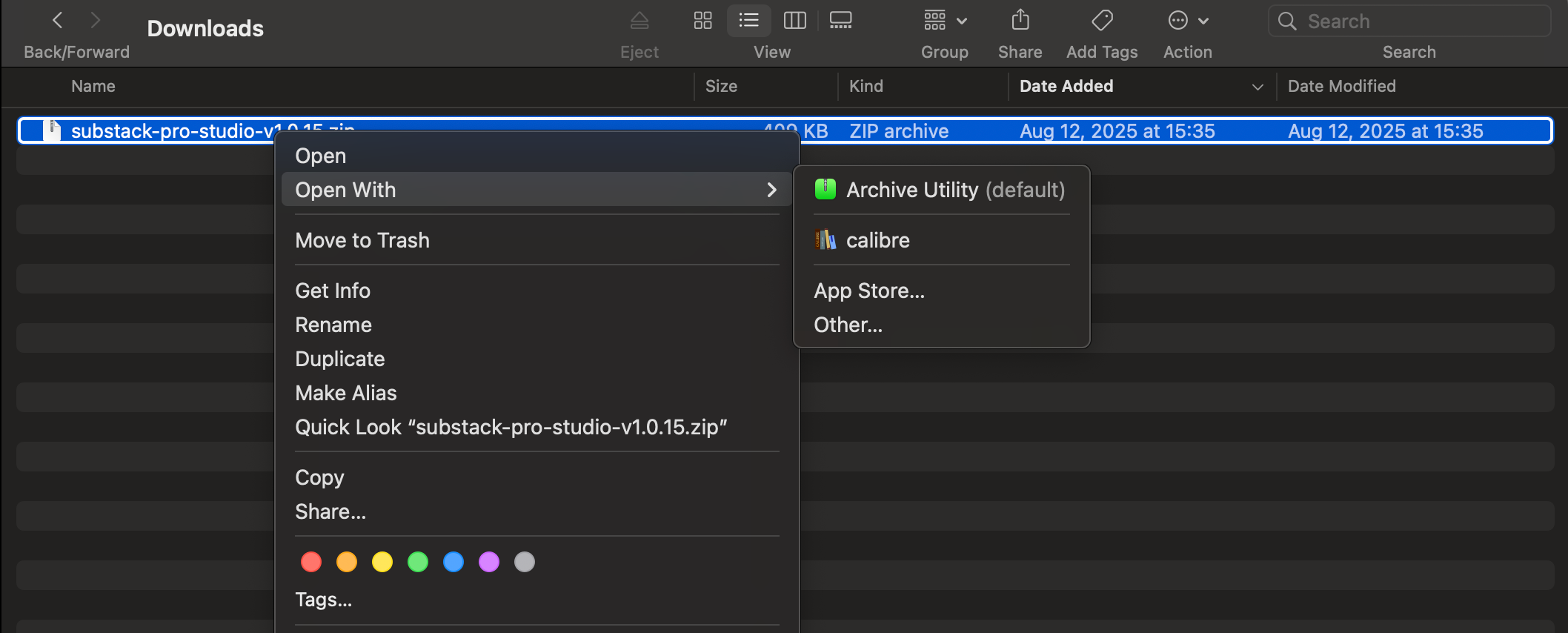
Download the .zip file and unzip it (right-click → “Extract All” or double-click to open, then drag the folder out).
On a Mac, hold down the Control key, click, and select Open With > Archive Utility. This will unzip the file and create a folder with the extracted files.
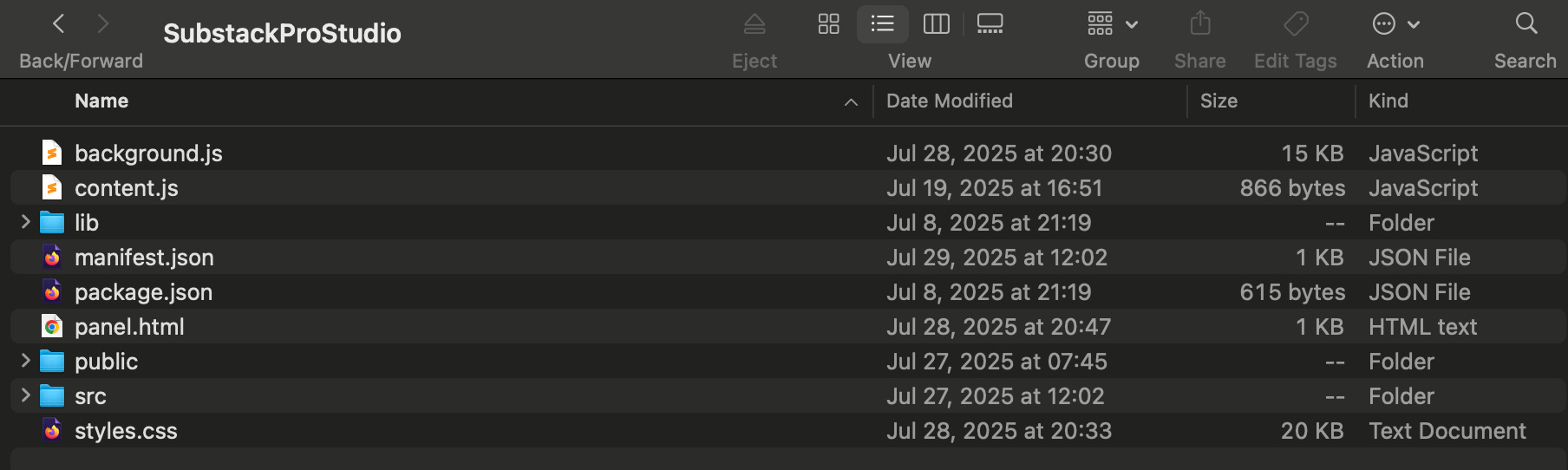
👉 Make sure you’re selecting the unzipped folder, not the .zip file!
📁 The unzipped folder should contain files like manifest.json, not just another folder.
You should see the following extension files
2. Open Chrome Extensions Page
In Chrome, go to:
chrome://extensionsPaste that into the address bar and hit Enter.
3. Enable Developer Mode
In the top-right corner of the Extensions page, turn on Developer mode.
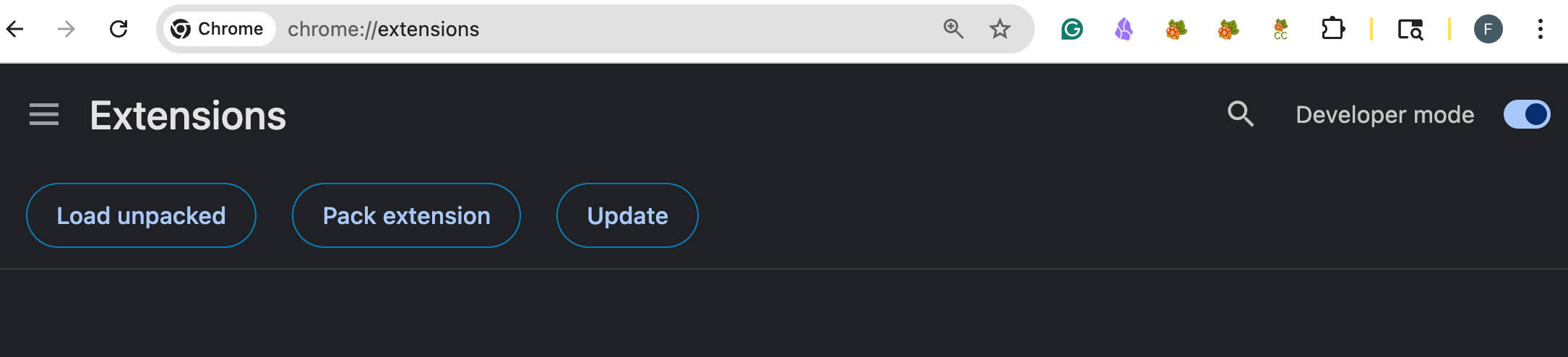
4. Load the Extension
Click the “Load unpacked” button.
Then, select the folder you just unzipped - the one that contains manifest.json directly inside.
Do NOT select the .zip file
Do NOT select a folder inside the unzipped folder
⚠️ If you encounter the error “could not load manifest,” ensure that you have followed the instructions above. You have either selected the ZIP file itself or a folder inside.
5. Activate It
Once loaded, ensure the extension is toggled on using the bottom-right toggle.
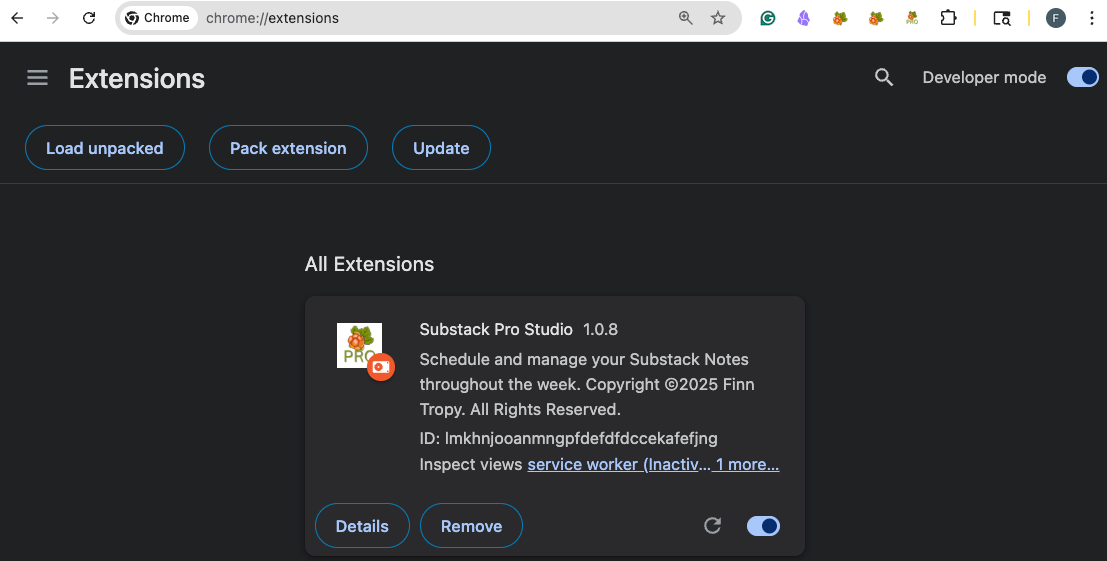
6. Pin It for Easy Access
Click the puzzle piece icon 🧩 in the Chrome toolbar.
Then click the pin next to Substack Pro Studio to keep it visible (you’ll see a cloudberry icon with PRO appear)

Click the icon to access Substack Pro Studio.
2. First-Time Setup & Onboarding
When you launch the software for the first time, you will see a Welcome Screen.
Publication discovery
The onboarding flow can auto-detect the Substack account signed into this browser and load your publications into a dropdown—including sites on custom domains when the Substack API exposes them. Select the publication you want to use. Click the Continue button.
Connection testing ensures Substack integration works before you continue.
The Skip Setup option lets you configure later, using Settings → Configuration → Open Onboarding button. If you skip setup, many of the functions won’t work correctly.
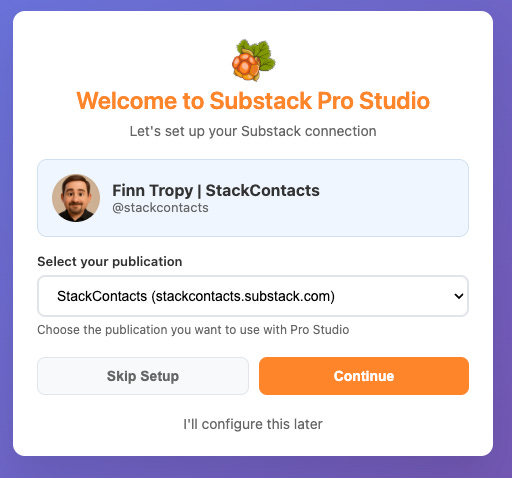
Confirm your selection, and the Pro Studio application will start.
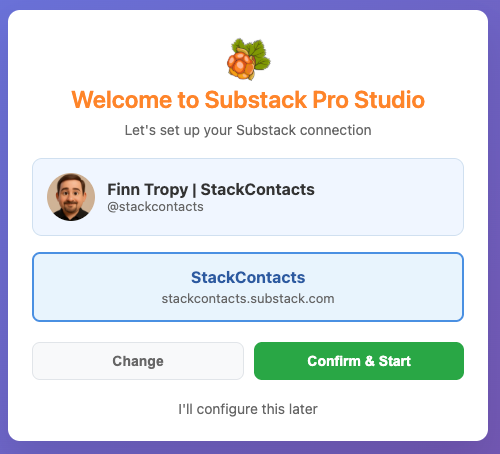
For custom domains, you may still be prompted to confirm details so the software can resolve the correct publication.
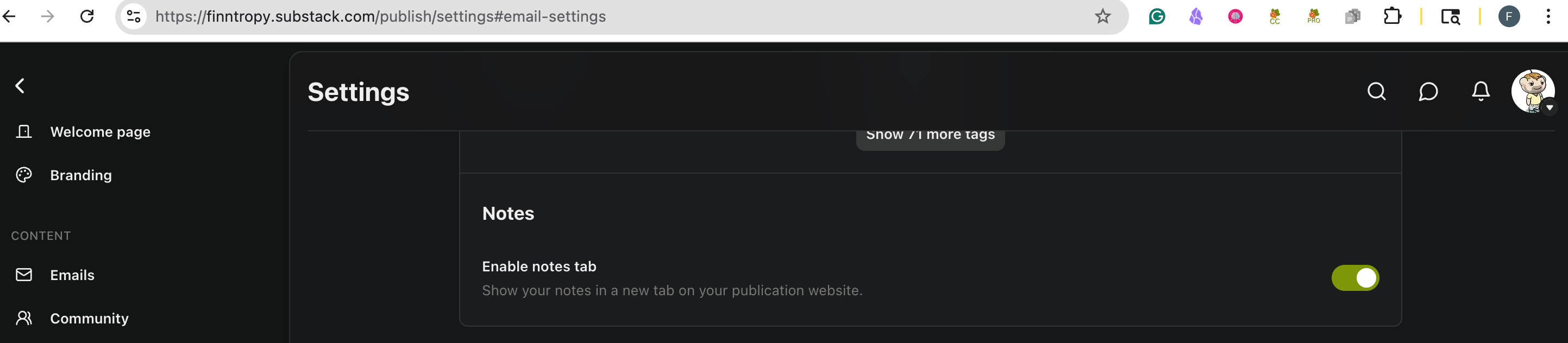
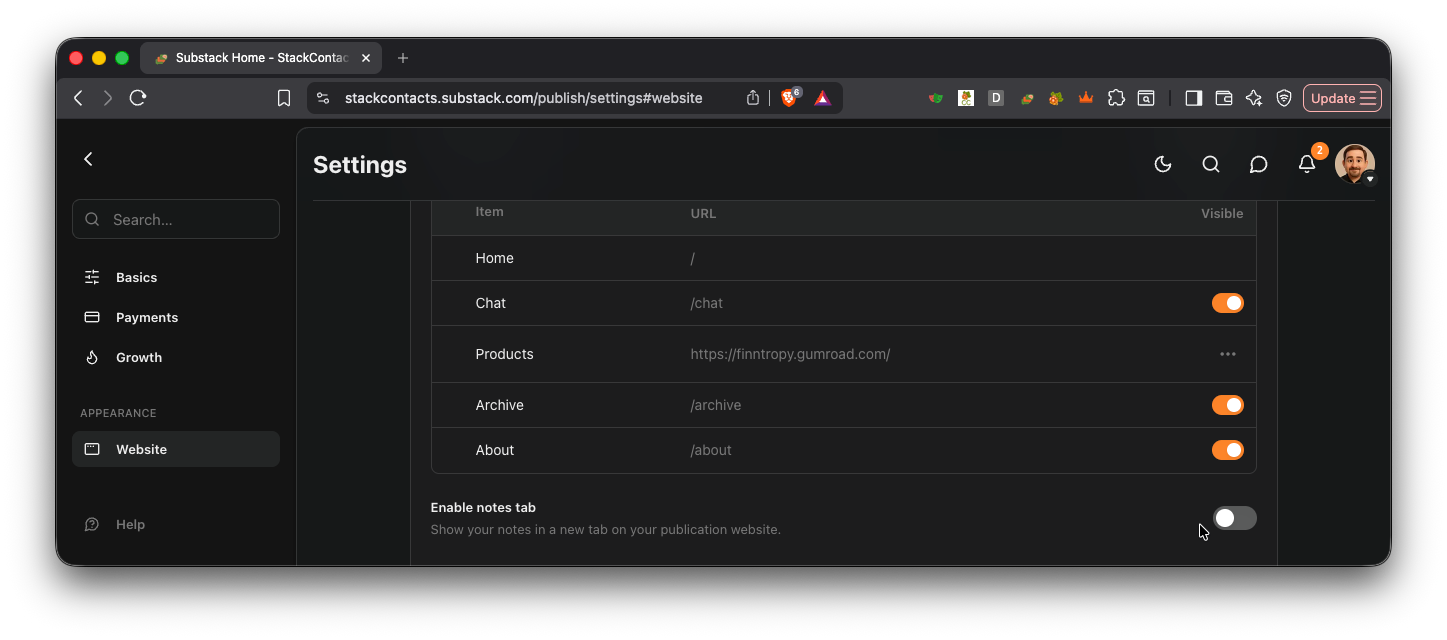
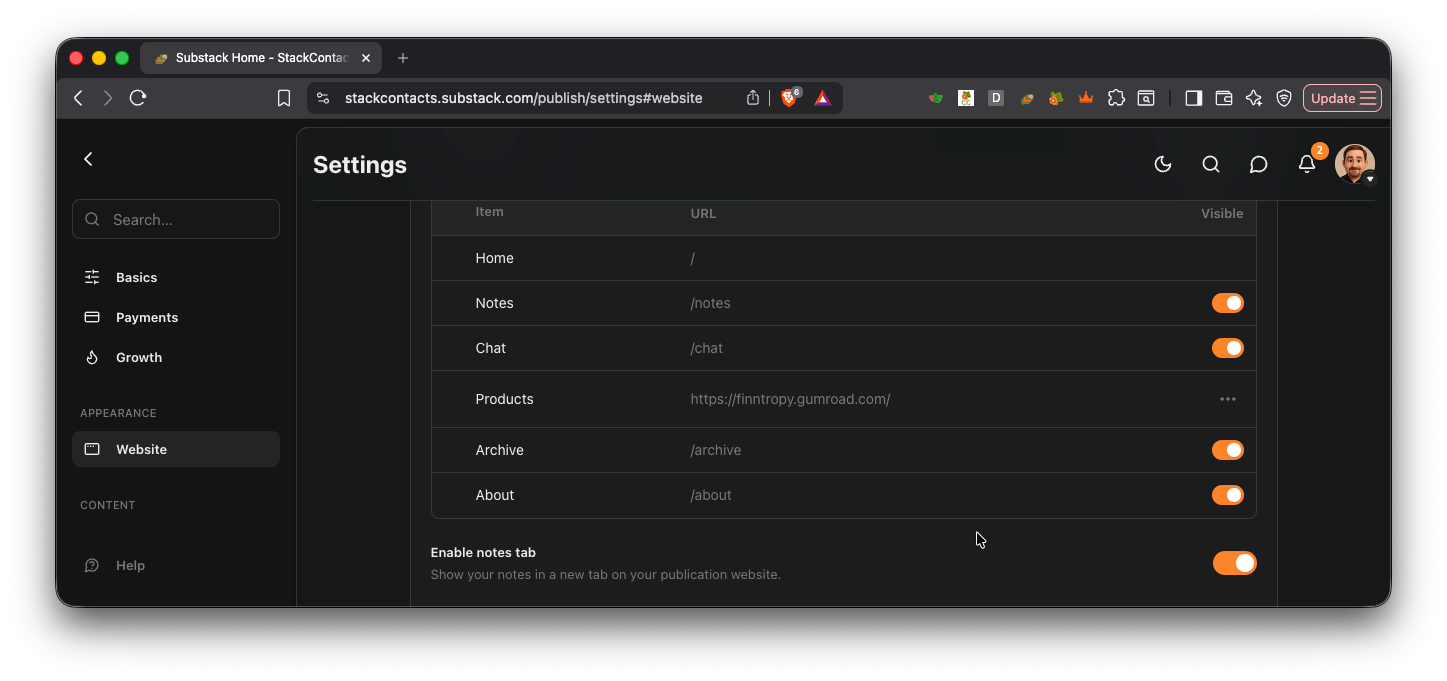
When you try the Sync in Analytics view and get “Substack is temporarily unavailable (server error). Please try syncing again in a few minutes.” error, the likely cause is that you have not enabled Notes for your publication.
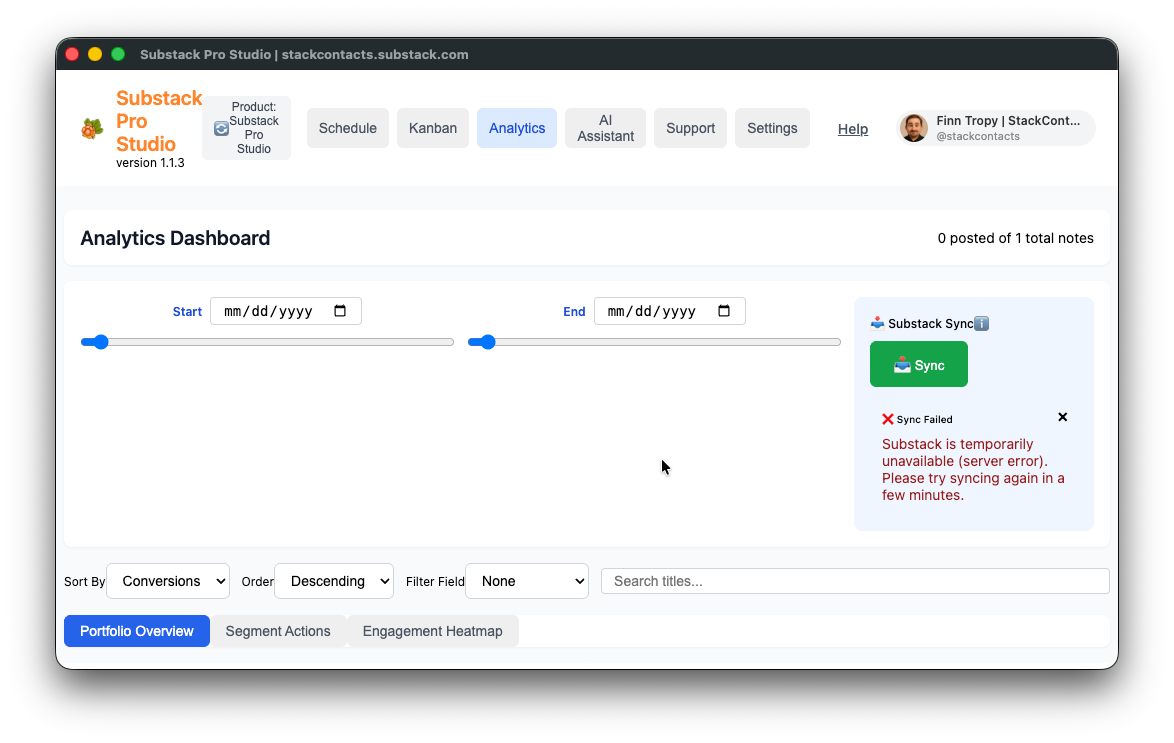
Go to your Substack Settings page and enable the Notes tab on your publication - see the example screenshot below on how to do this. The URL has this pattern: https://yourpublication.substack.com/publish/settings#website
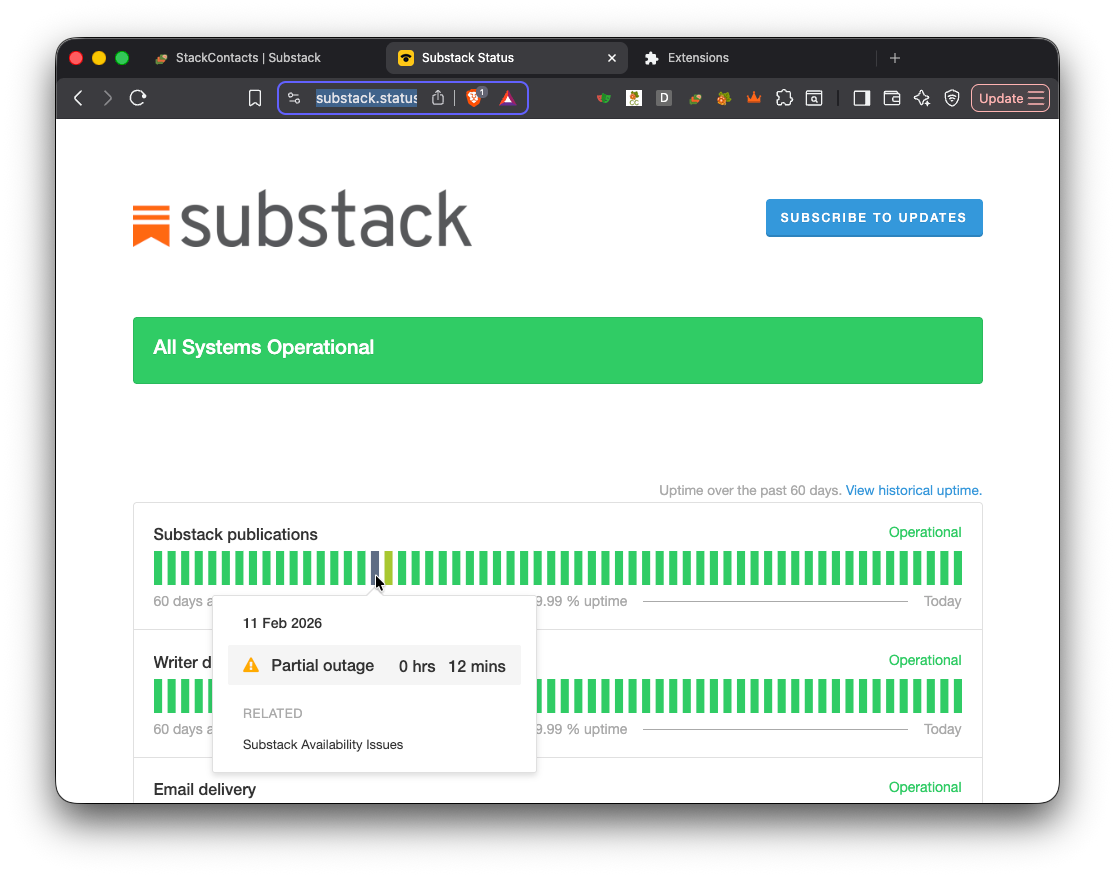
Occasionally, the Substack platform may have problems and outages. You can check for Substack outages at https://substack.statuspage.io/. The Substack operations team updates this for any availability issues and incidents. These incidents may affect one or more of Substack’s capabilities and may also affect Pro Studio functions.
Offline and network errors during onboarding show clearer messaging (for example, a dedicated network error path instead of a generic failure).
After setup, the header shows a compact profile chip (avatar, name, handle) when you’re authenticated, or Sign in when not. If Substack cannot be reached but a cached profile exists, the chip appears greyed with Offline / Check network, so you are not misled into thinking live data is fresh. See the screenshots below.
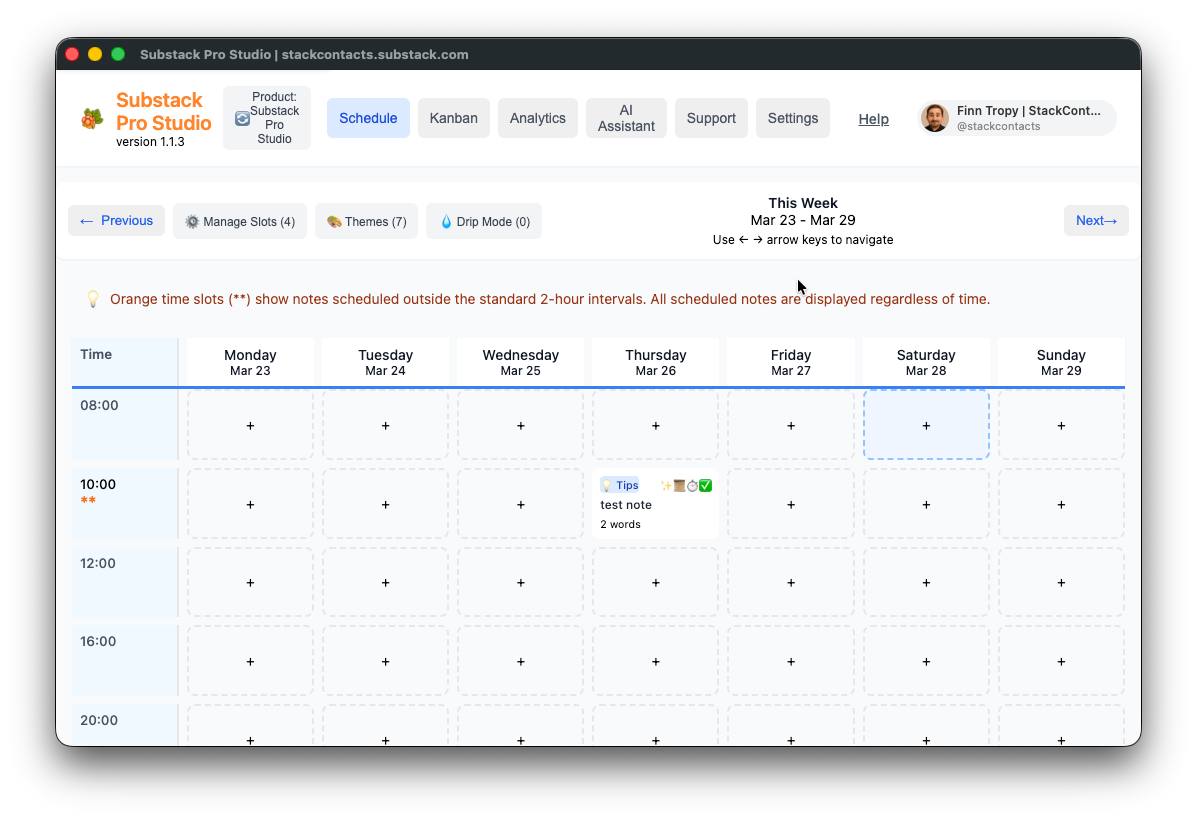
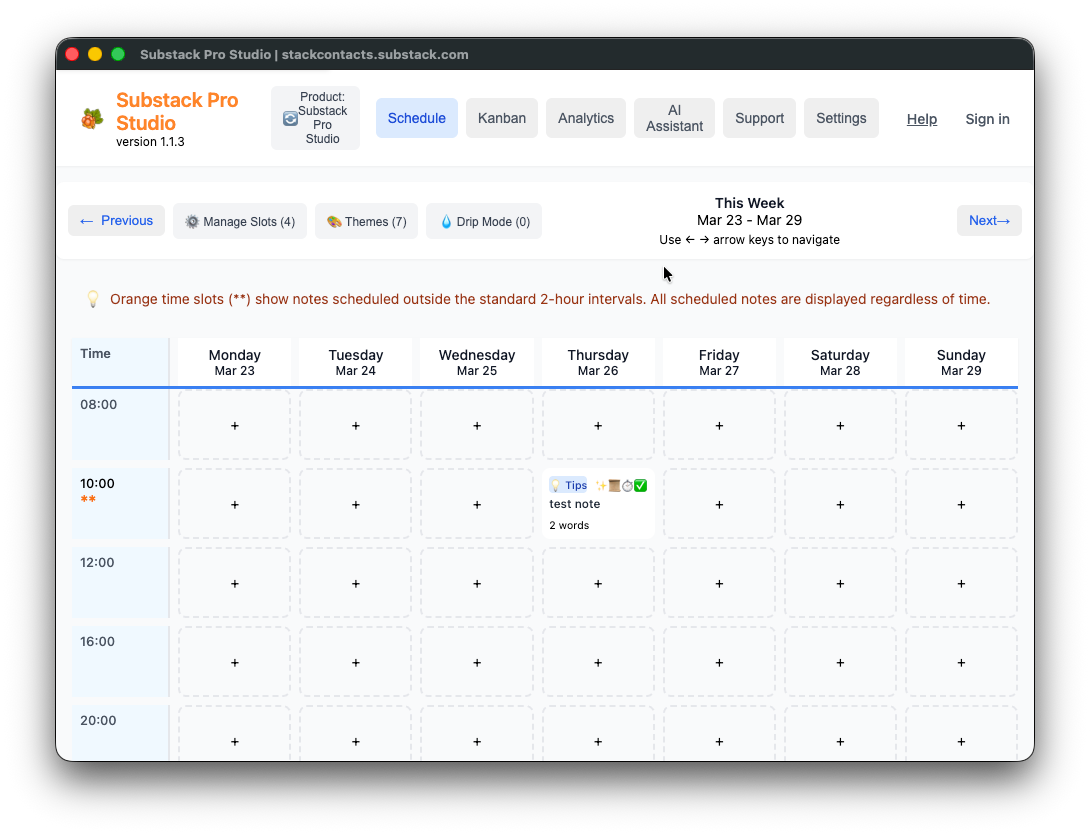
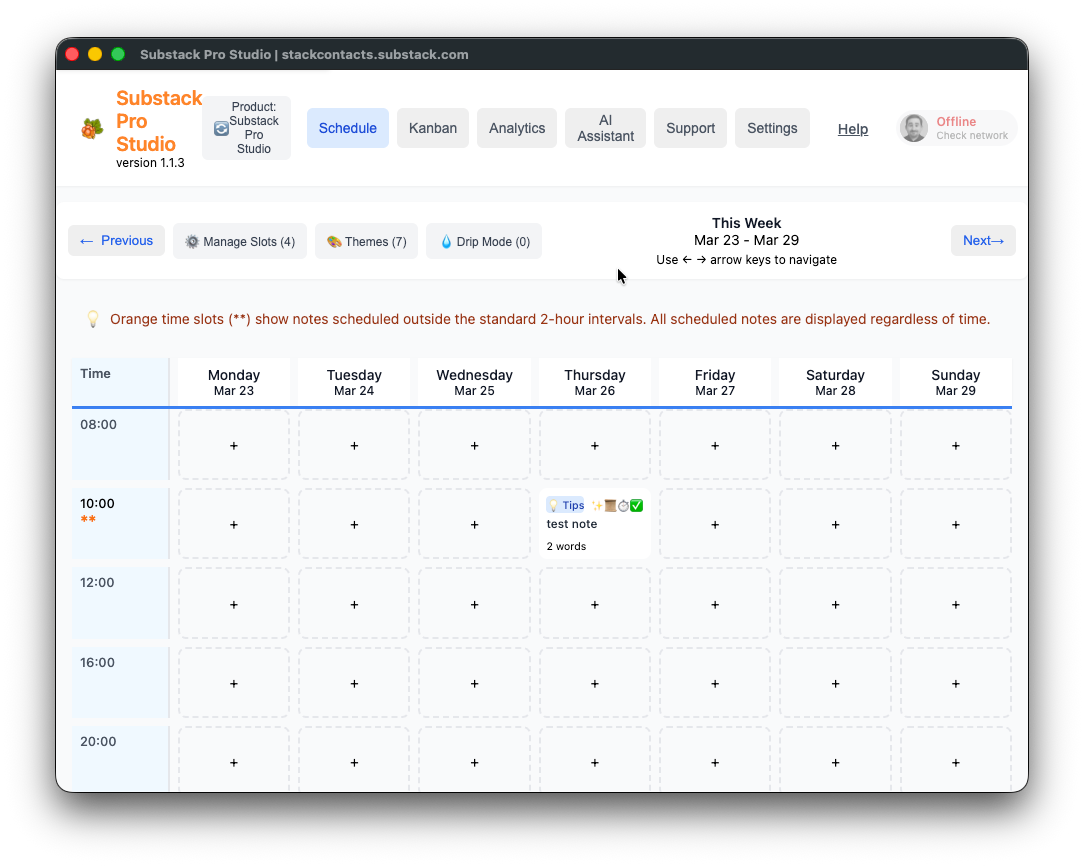
The window title can show your configured publication hostname (for example, Substack Pro Studio | yourdomain.com) so multiple publications are easier to tell apart if you have multiple copies of Substack Pro Studio installed and running.
3. Core Interface Overview
The user interface follows modern web design principles.
Dedicated Window Mode — Persistent, resizable interface (not a tiny popup-only workflow)
Main Navigation Tabs — Schedule, Kanban, Analytics, AI Assistant, Support, Settings, Help
Product Context — “Product: Substack Pro Studio” branding. Substack Pro Studio supports custom GPT integrations where applicable for your product variant.
Responsive Design — Adapts to window size; the main window width is set so the header identity fits comfortably (about 1100px by default).
Version Information — Current version display (e.g. 1.1.3)
Help — Opens a help window (default size about 1280×820); navigation tabs wrap on narrow widths. Internal documentation links open within the extension window, so you can view documentation alongside the Pro Studio.
4. Schedule View - Weekly Planning
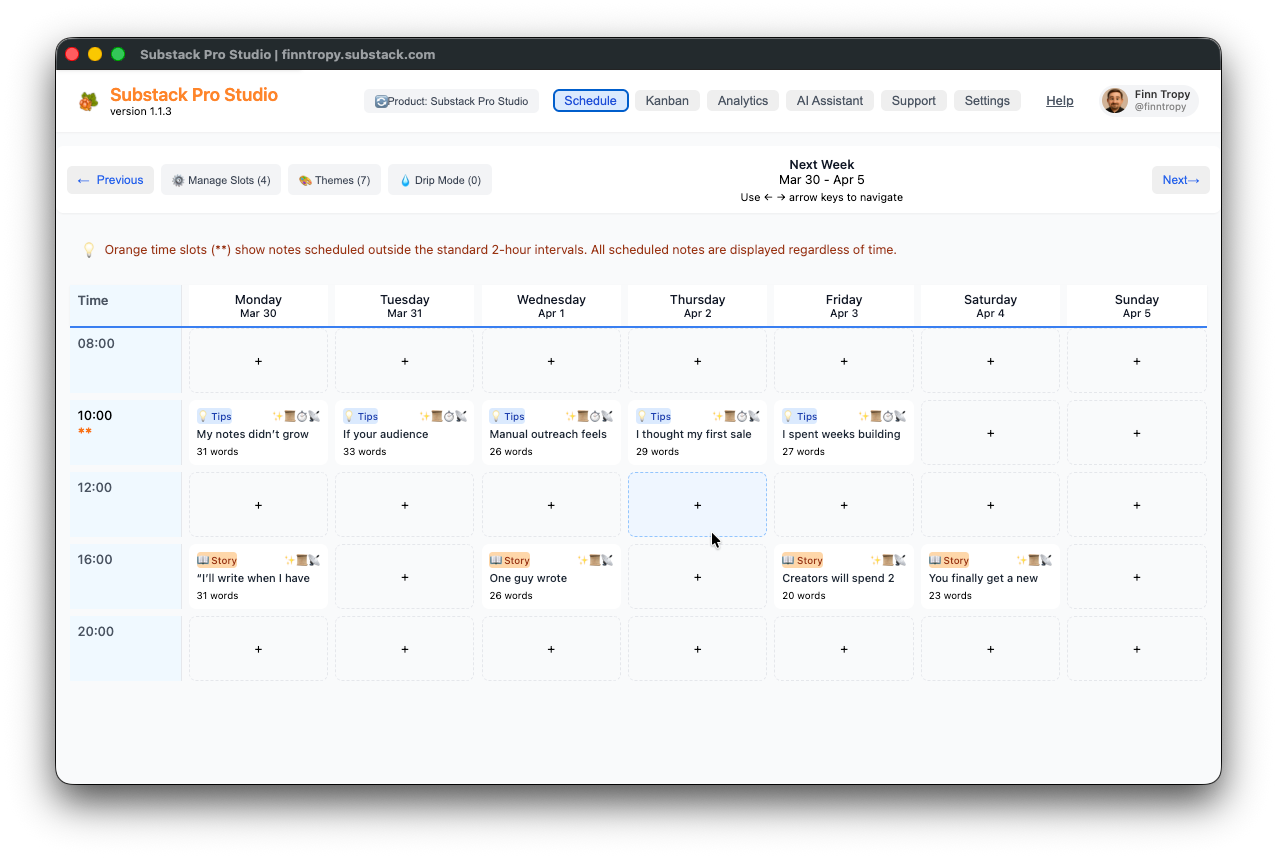
When you open the Schedule for the first time, you will see a 7-day calendar grid view with time slots as rows and weekdays as columns, Monday through Sunday.
The standard time slots are 2-hour intervals from 08:00 AM to 08:00 PM, your local time. The software uses the browser's time zone settings, which are normally configured in the operating system settings.
You can create custom time slots at any time—useful when your audience is in another time zone. Manage Slots supports smart optimization from engagement analytics and up to eight optimized slots (see Analytics heatmap and Schedule slot tools).
If you use Notes Sync, the grid can create historical time slots based on the actual posting times of your Notes.
Sticky rows. The time labels and weekday header row stay visible when you scroll the grid, so you do not lose context.
Conflict resolution. When multiple Notes compete for the same slot, the grid supports resolution modes such as Auto-Resolve, Priority-Resolve, and Manual handling so you can clear conflicts deliberately.
Evergreen workflow. Use Analytics to spot high-performing Notes, then mark a note as Evergreen (emerald styling). Drip / theme rules can treat Evergreen content as a first-class category for strategic reposting. (See §10 Themes.)
Server vs local scheduling. Notes scheduled via Substack’s draft API may show a server indicator (for example 📡) in Kanban and related UI; local alarm–oriented scheduling may show a clock (⏰) where applicable. Exact glyphs match the current build; use them as a quick visual hint for how the publish time is enforced.
⚠️ You can schedule up to 3 months in the future. This is a limitation set by the Substack API.
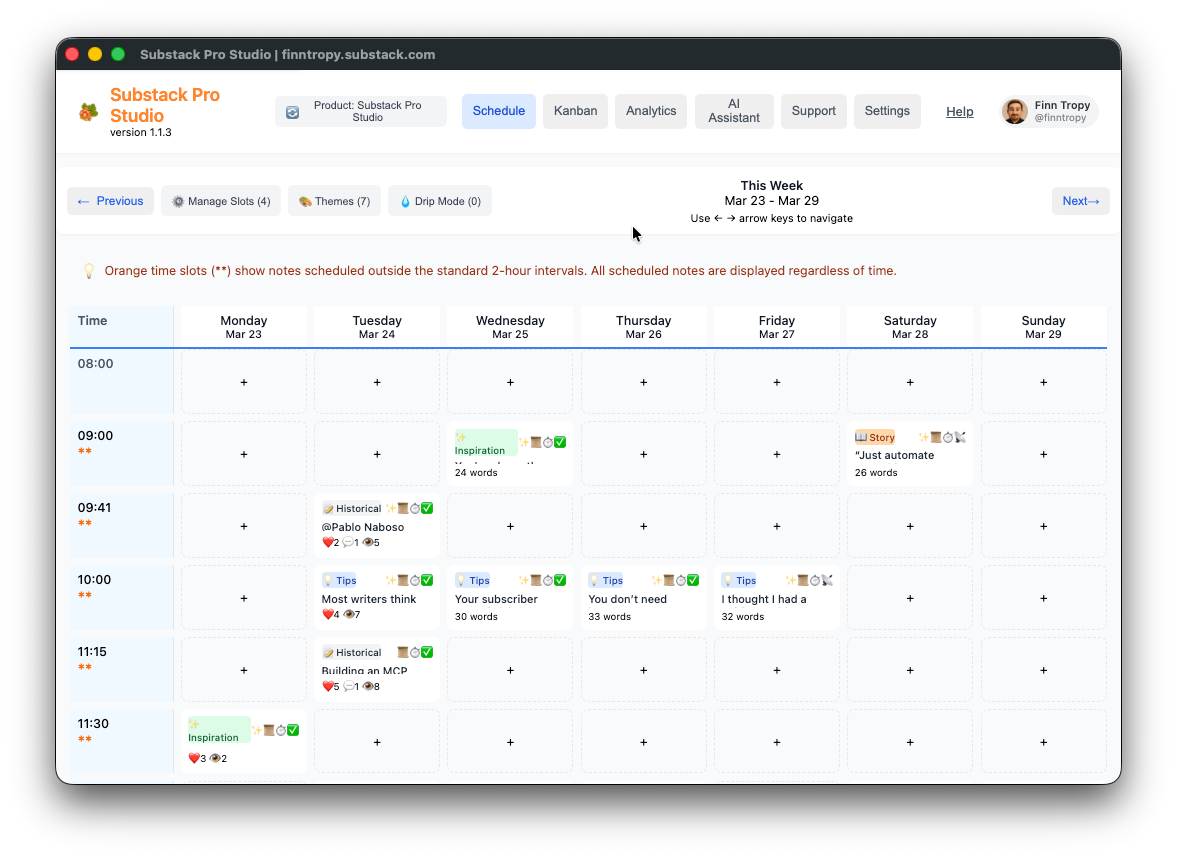
You can navigate to historical or future weeks using the Previous/Next buttons or the Left and Right arrow keys on your keyboard.
Week Labels — e.g. “This Week Mar 23 - Mar 29” with keyboard navigation hints
Sticky Time Column — Time column stays visible while scrolling
Visual Indicators — Theme badges, image and video counts, rich text indicators
Content Types — Historical, Tips, Inspiration, and other themes with engagement metrics, where synced
Status Icons — Scheduled, posting, posted, failed; engagement metrics (hearts, restacks, comments)
4.1 Icon Meanings in the Weekly Grid
Each Note has one or more icons with specific meanings.
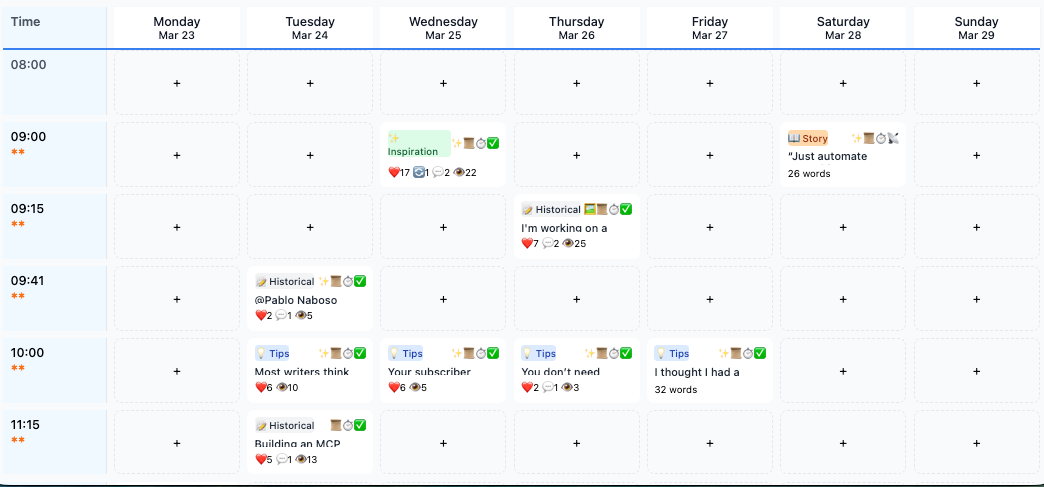
Each Note can be assigned a theme in the Editor or by the AI Assistant.
Header Icons (Left side - Theme):
💡 Tips — Lightbulb for tips and advice
✨ Inspiration — Sparkle for inspirational content
❓ Question — Q&A style
📖 Story — Narrative / story
💭 Opinion — Opinion pieces
📰 News — News / current events
📝 Default — General notes
Evergreen — Emerald styling for strategic “evergreen” content (see §10)
Status Icons (Right side - Note Status):
⏰ Alarm - Scheduled (local alarm path) - this requires a browser running to post
📡 Server - Scheduled (server-side scheduled) - Substack will post the note
🔄 Yellow Arrow — Posting in progress (usually brief)
✅ Green Checkmark — Posted successfully
❌ Red X — Failed (including strict-mode failures when a server schedule could not be confirmed—see §15)
Feature Icons (Right side - Note Features):
🖼️ Image — Attached images
🎥 Video — Attached or synced video (historical Notes can include video from Substack)
✨ Green Sparkle — Rich text content
📜 Purple Scroll — Historical note imported from Substack (use Sync)
⏱️ Orange Clock — Custom time slot (not a standard 2-hour interval)
Conflict Indicators:
⚠️ Red Warning — Multiple notes in the same time slot
Number after warning — Count of conflicting notes (e.g. “⚠️3”)
After Sync, historical Notes can show:
Metrics (Bottom - for Historical Notes):
❤️ Heart + Number — Reactions
🔄 Arrow + Number — Restacks
💬 Speech Bubble + Number — Comments
👁️ Eye + Number — Clicks
Word Count (Bottom right):
“X words” — Word count (synced Notes also carry counts from Substack where available)
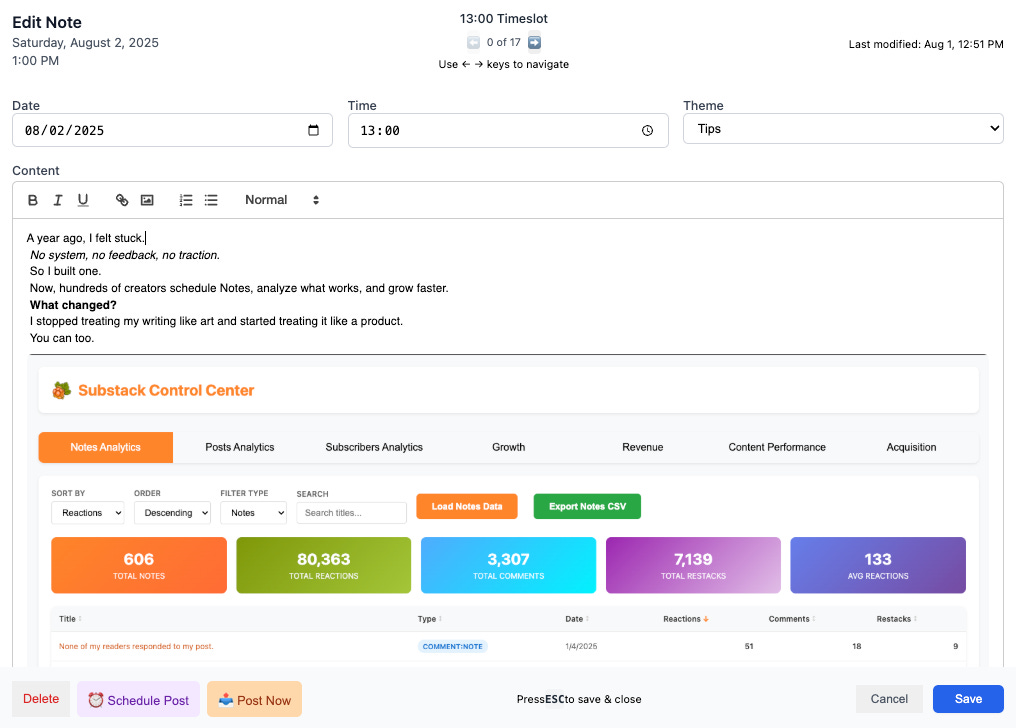
4.2 Editor View (full detail)
When you click a time slot, the Editor opens. It can be an empty Note (grid cell with +) or an existing historical Note.
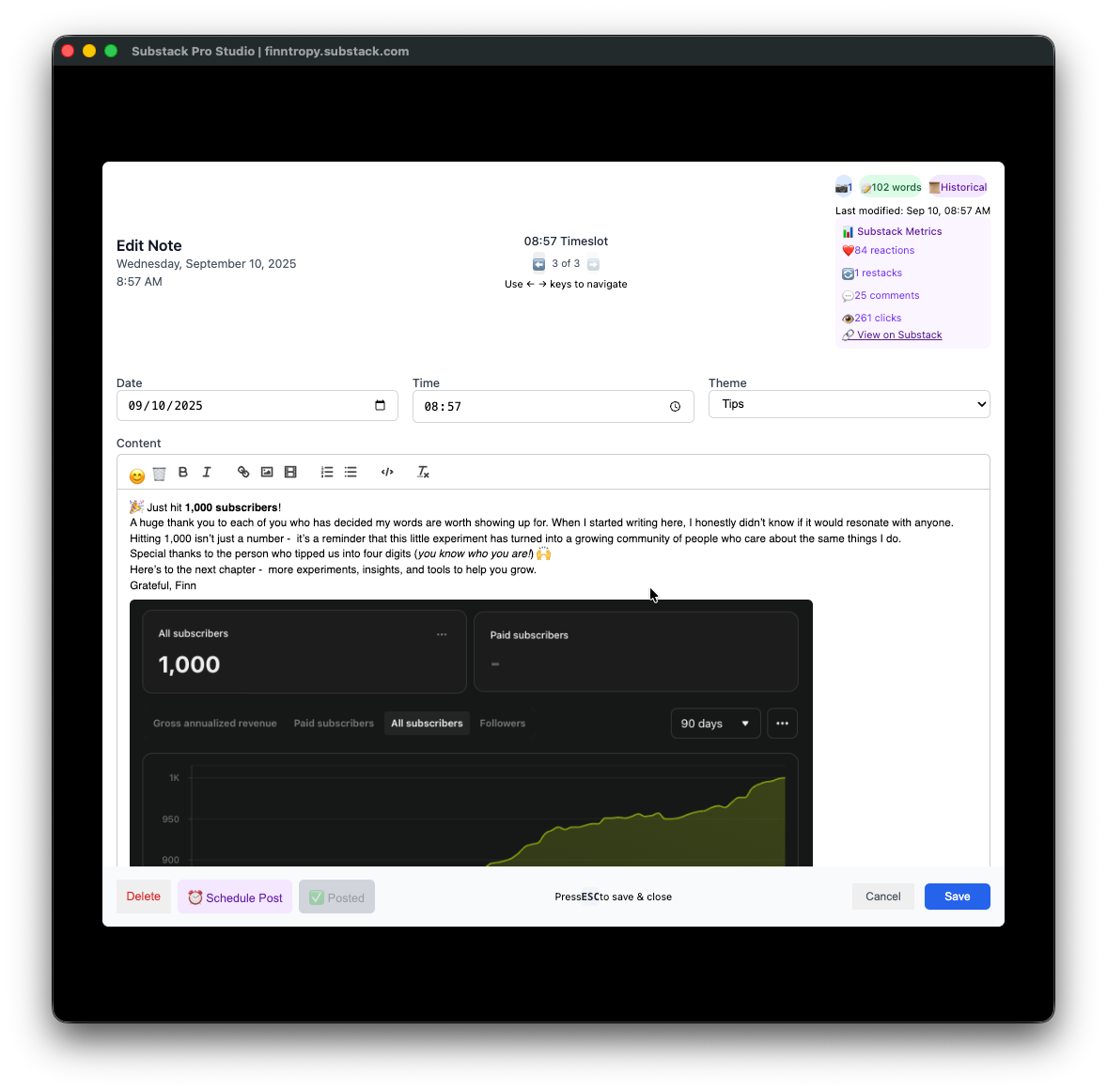
Top row
Note date and time on the left
Timeslot context: how many Notes share the slot and which one you are editing; use Left / Right arrow keys to move between Notes in the same slot
Icons: attachments, sync status, Substack metrics, link to the live Note when historical
Second row
Date and time controls for scheduling
Theme selector (default: Tips)
When a Note is scheduled, a scheduling mode banner explains server vs local context; Cancel schedule labeling reflects whether you are clearing a Substack draft or a local alarm path
Rich text toolbar
😀 Emoji picker
🗑️ Clear editor content
B / I — Bold / italic
🔗 Link — Selected text becomes a link; if you enter a Substack post URL (
*.substack.com/p/slug), the editor can insert a rich article card (title, publication, cover) matching Substack’s composer🖼️ Image — PNG, JPEG, or WEBP; up to six images per note; drag-and-drop supported
Video — Attach video with upload progress (large files supported via chunked upload to Substack’s pipeline); video preview respects aspect ratio
@mention — Type
@handleto search Substack profiles and insert mentions that post correctly to SubstackOrdered / bullet lists
</> — Code block (multiline quotes, prompts, code); synced from Substack where applicable
Tx — Clear formatting of selected text (useful when pasting from the web)
Paste behavior
Generic URLs with OpenGraph metadata may fetch og:image and show a preview image below the link
Substack article URLs can become link attachment cards (not only plain hyperlinks)
Bottom actions
Delete — Removes the Note from extension storage
Schedule Post — Creates or updates a Substack scheduled draft when the API succeeds; you cannot schedule in the past. You may get a warning if the note is empty (you can still confirm)
Post Now — Immediate post (hidden when inappropriate for the current state, e.g. already scheduled or Posted )
Cancel — Discard unsaved edits and close
Save — Save and close
ESC — Saves and closes
After a successful schedule, the editor can auto-close after a short delay (about two seconds) while content is saved.
Reschedule and edits
Moving a scheduled Note to a new slot or editing its content updates the existing Substack draft in place when possible, keeping the same draft note ID—so you are not left without a server schedule between operations. If a draft was removed on Substack’s side using the native Web interface, the scheduler can create a new draft.
5. Kanban Board View - Workflow Management
Kanban helps you manage Draft → Scheduled → Posted workflow.
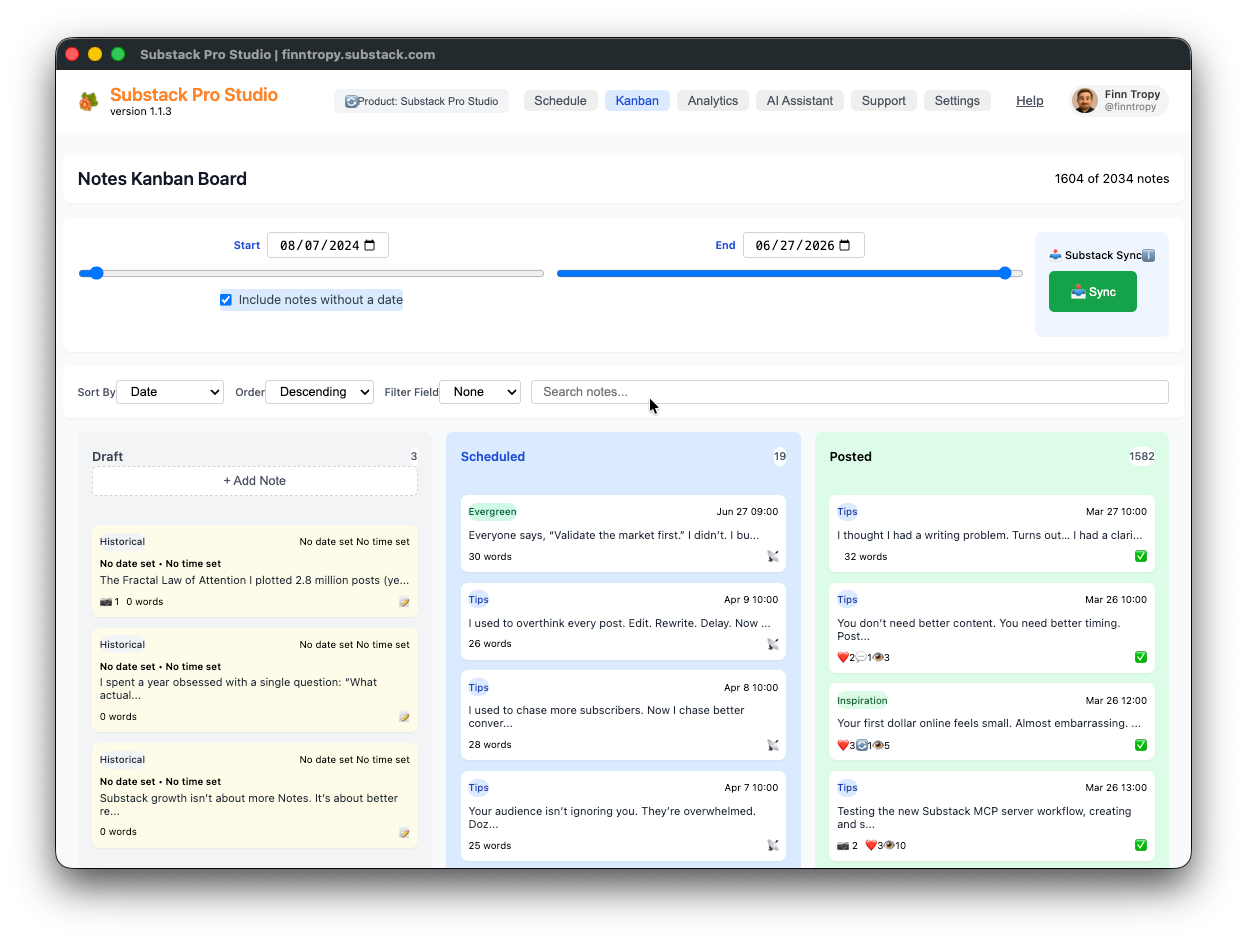
Three columns — Draft, Scheduled, Posted. Failed appears when something could not be posted
Note counts — Filtered totals (e.g. “1604 of 2034 notes”)
Date range — Start/end with sliders
Include Notes Without Date — Optional
Substack Sync — Pulls posted Notes and metrics from Substack
Filtering & Search — Sort, order, field filters, search
Draft — “Add Note” for empty drafts
Scheduled — Future-dated Notes with schedule indicators (📡 server vs ⏰ local where shown)
Posted — Published Notes; metrics can show on cards for quick scanning of what worked
Cards — Theme, preview, word count, dates
Drag a Draft to Scheduled to auto-pick a slot (theme-aware scheduling by default). If scheduling fails (API error), the drop is aborted, and you should see feedback rather than a false success.
Reuse winners. Drag from Posted to Draft to create a new draft from a posted (historical) Note’s content—handy for editing and repurposing.
Hidden clutter. Restacks and empty historical Notes are hidden from the Schedule and Kanban views to keep the board actionable.
6. Analytics Dashboard - Performance Insights
The Analytics dashboard segments performance so you can see what converts and what merely reaches.
Date range, Sync, Sort, Order, Filter field, and Search work across subtabs.
Portfolio Overview Tab
High-level metrics and four segments. The bubble chart is clickable (opens the Note on Substack). Bubble size reflects virality; axes relate to clicks and subscriber conversions as labeled in-app.
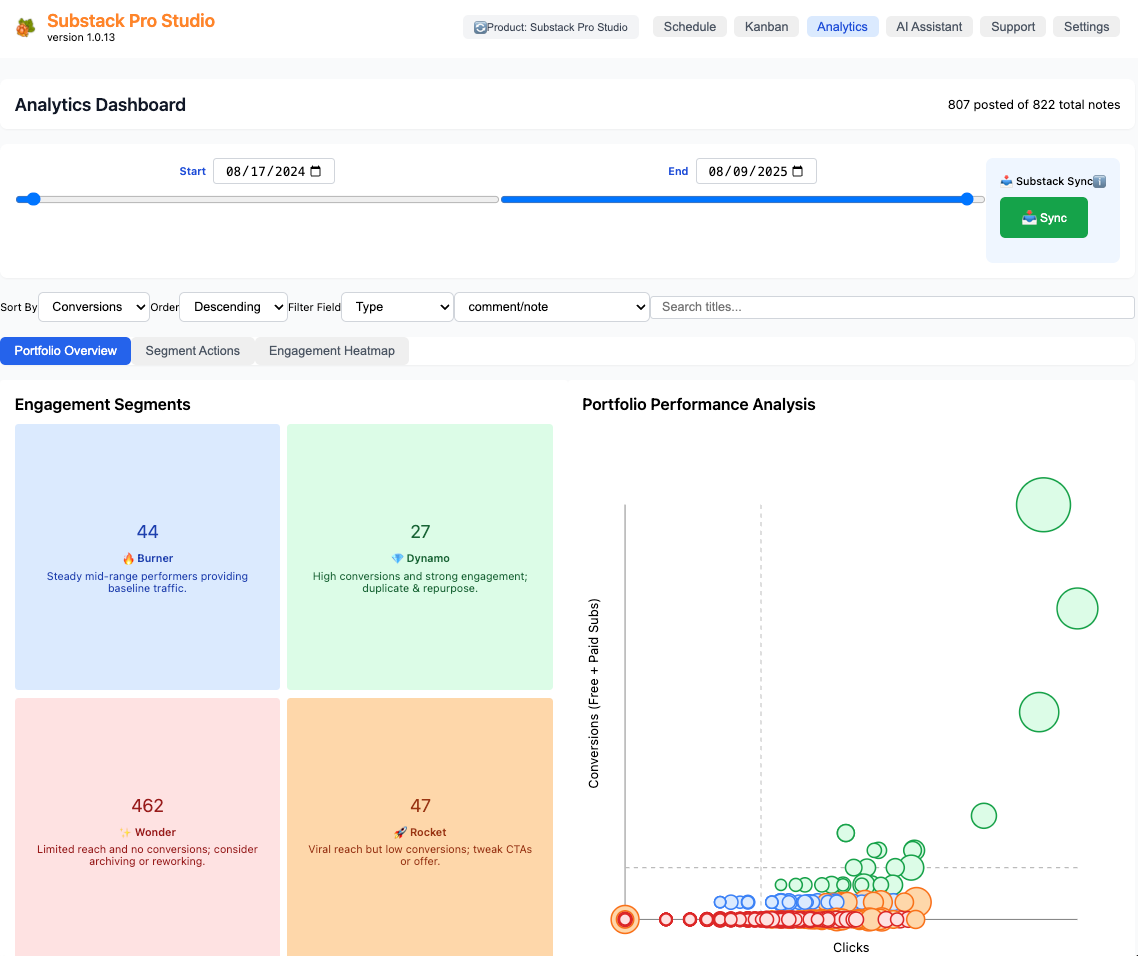
Engagement Segments
💎 Dynamo — Strong conversions and engagement
🚀 Rocket — Reach without conversions
🔥 Burner — Steady mid-range
✨ Wonder — Limited reach, no conversions
Segment Actions Tab
Sort by conversions, clicks, virality, media, etc.
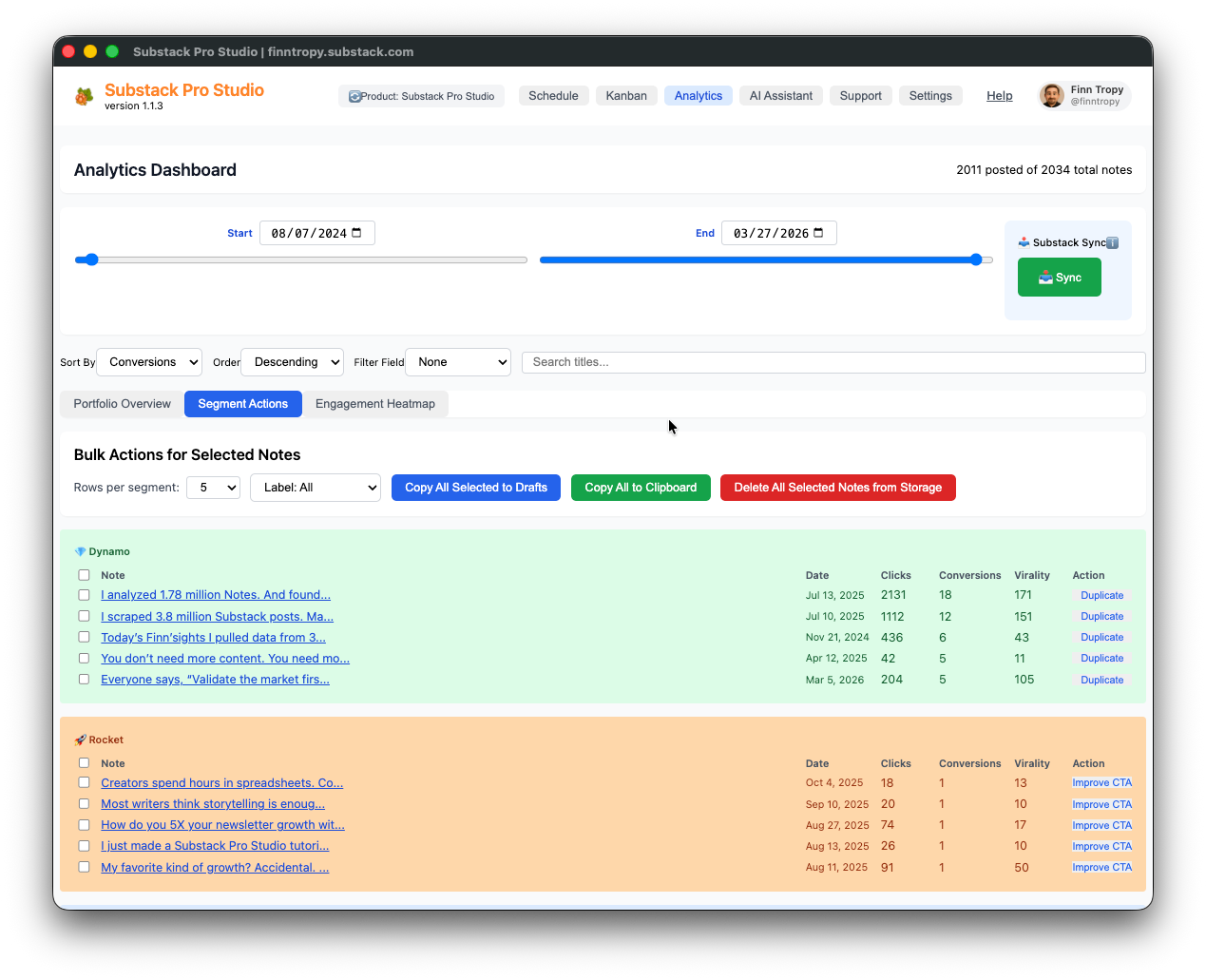
Bulk actions — Copy to drafts, copy to clipboard, Duplicate, recommendations, etc.
Rows per segment — Control how many rows to show per segment (e.g. 5, 10, 15, 20, or All).
Label - select theme (such as Evergreen) for selected notes you copy to drafts.
Selection — Select all in segment headers where available; Delete all selected Notes for bulk cleanup (use carefully).
Engagement Heatmap
Total engagement by posting time; Cap extremes (95th percentile) reduces skew from viral outliers. Cell centers can show note counts. Timezone labeling helps interpret hours. Top Time Slots for New Notes helps pick slots informed by your history.
Filter by type (e.g., comment/note) to focus on Notes you authored versus restacks of other people’s notes or posts.
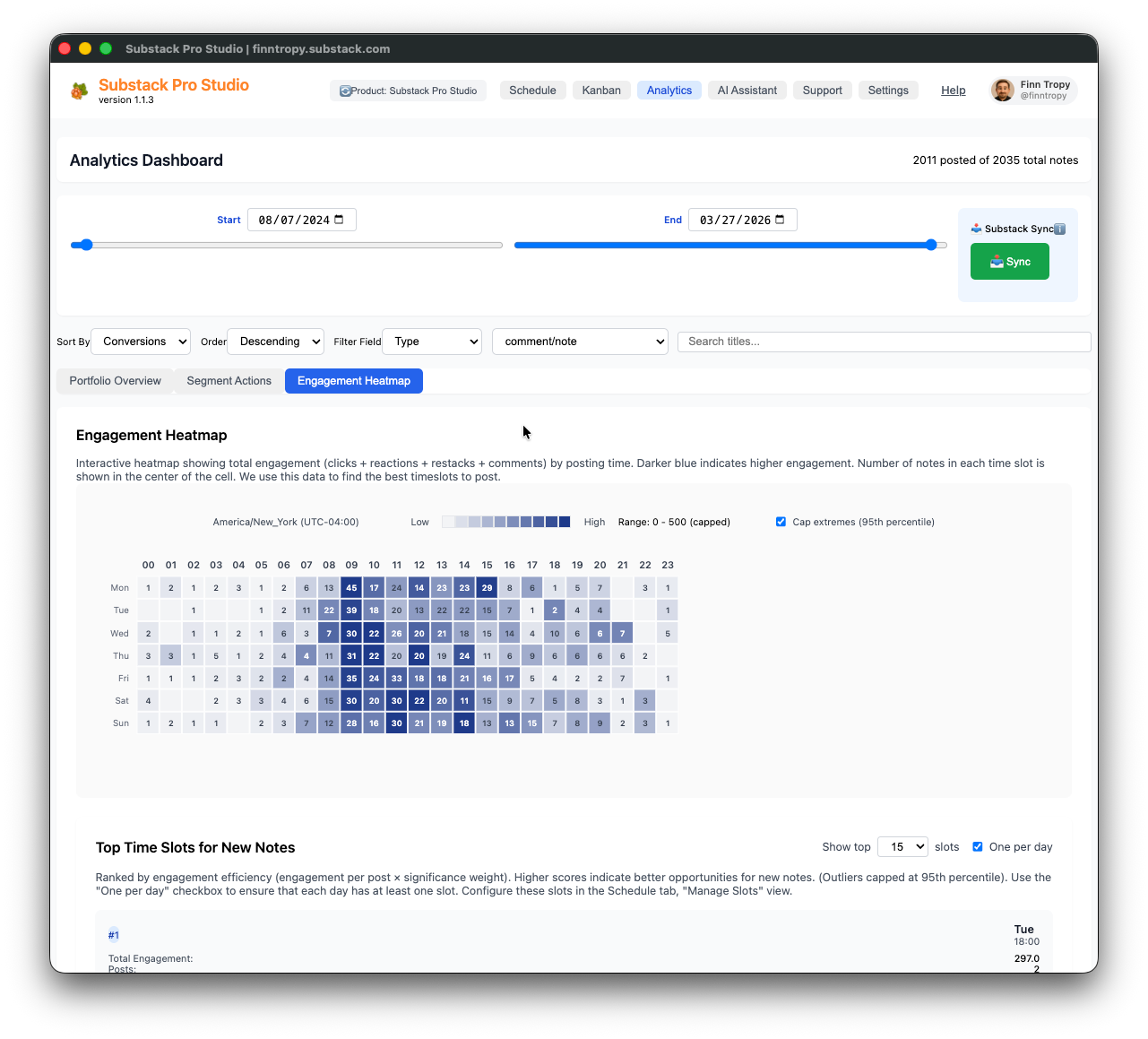
Example clip (audience rhythm): Note on Substack
7. AI Assistant - Content Generation Workflow
Use your existing AI tools—no bundled LLM subscription required.
Four-step flow (each step usable alone):
Step 1: AI Prompt
Save, delete, and load prompts from templates or your collection. Templates are tuned for strong Notes; additional templates ship over time (for example, an awareness-segmented note-creation template).
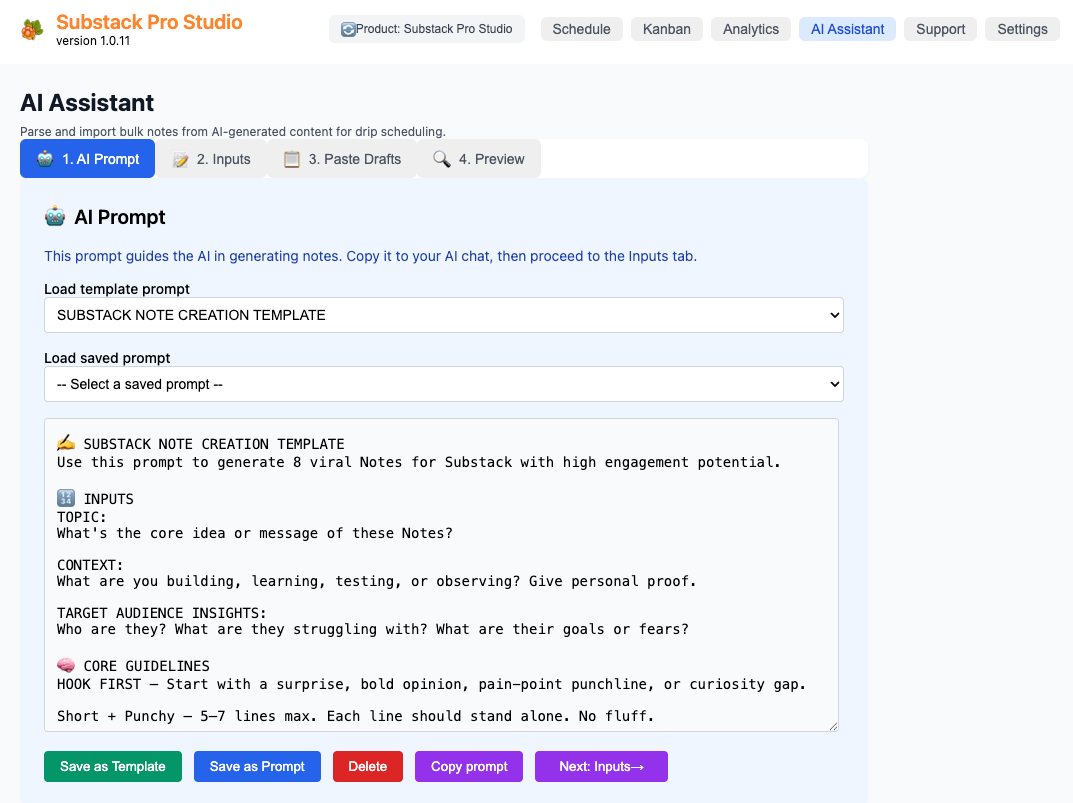
Copy Prompt copies to the clipboard for ChatGPT or any tool, but don’t hit enter.
Step 2: Inputs
Topic, context, audience. Save and load input sets.
Delete preset is available when you need to prune saved inputs.
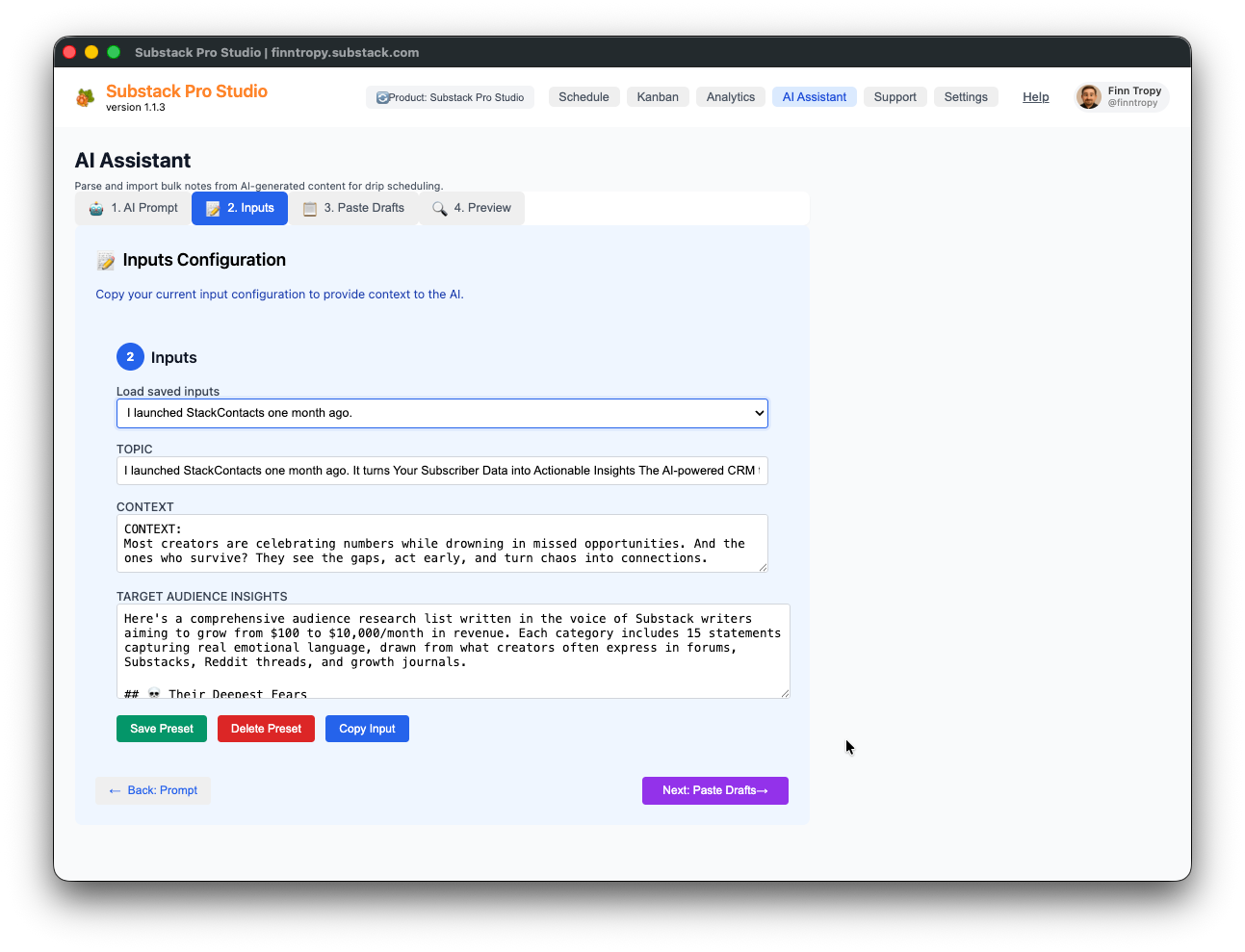
Copy Input copies structured input for pasting under your prompt from the previous step.
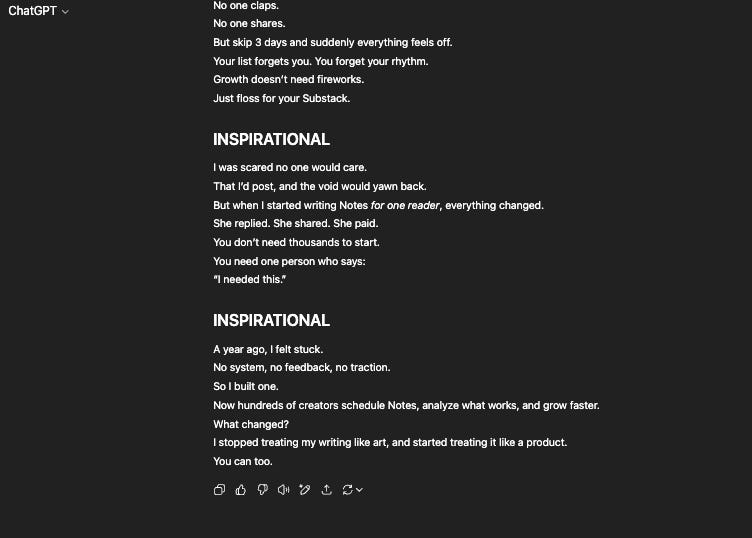
Hit enter, and ChatGPT will produce 8 high-quality notes - see example below:
Step 3: Paste Drafts
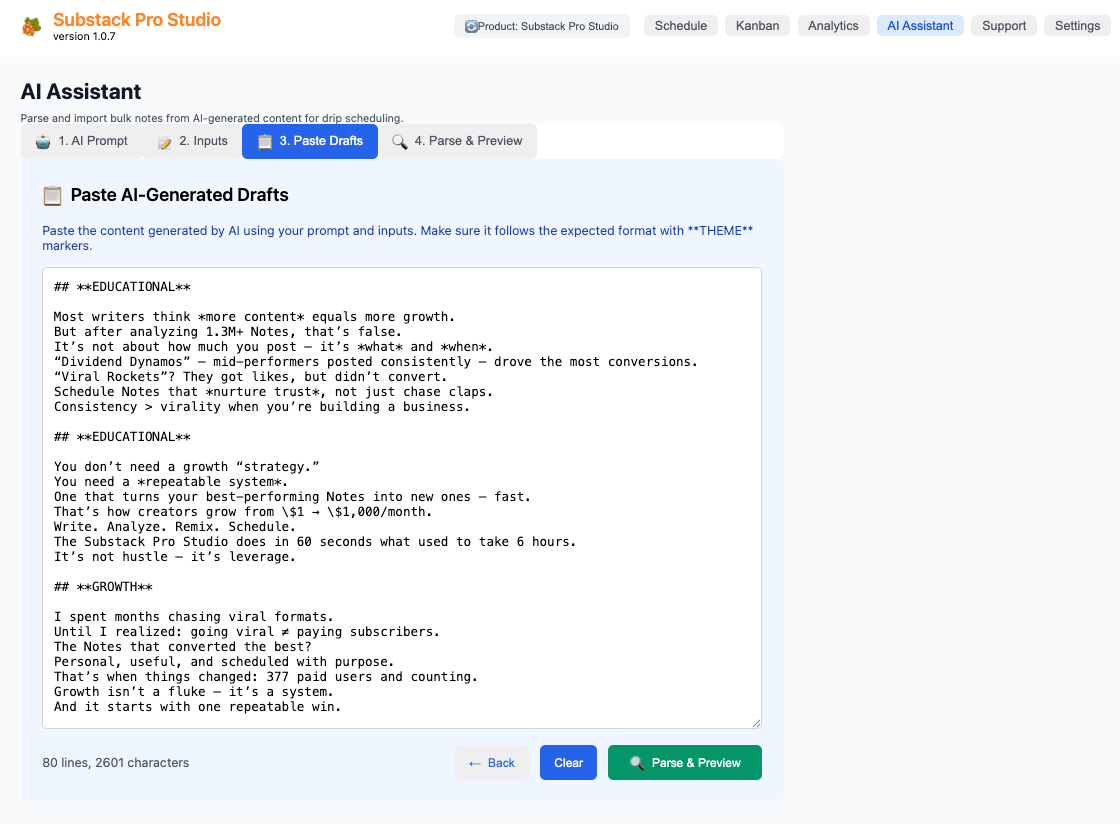
Copy the AI output to the clipboard and paste it here.
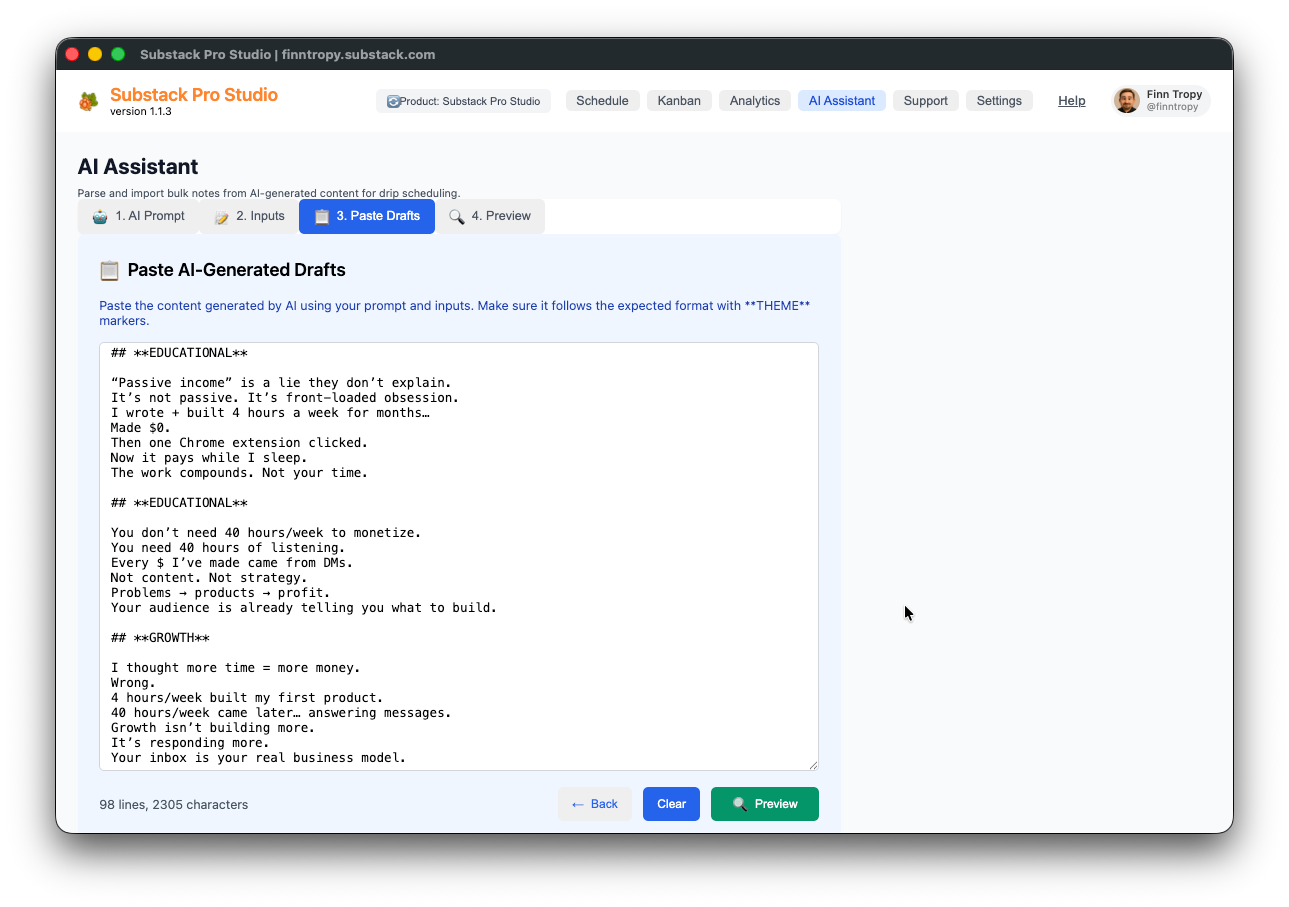
Multi-word theme lines in Paste Drafts are supported, so synonyms and phrases map cleanly to themes.
If you have your own AI Prompt template, you can add the following section to control the output format so that Pro Studio can parse your text into separate Notes.
🎯 FORMATS TO FOLLOW
You must generate exactly 8 Notes, two in each format below:

EDUCATIONAL — Teach 1 clear idea. Show a fresh angle.

GROWTH — Show personal discovery, mindset, or performance insight.

ENTERTAINING — Share a witty take, surprising story, or unexpected twist.

INSPIRATIONAL — Tell a pain-to-triumph or motivation arc.

✅ FINAL OUTPUT INSTRUCTIONS
Each Note must start on a new line with the heading exactly as EDUCATIONAL in double asterisks and all caps,
with no other markdown or characters before it.
Do not add any hashes (#), underscores, or other markdown syntax

Then insert a --- line directly underneath to separate each Note clearly.

⚠️ This formatting is mandatory. Do not skip it.
Markdown links in pasted content are supported: [text](url) can produce clickable links and OpenGraph preview images when notes land in your drafts queue—same idea as the dedicated link rule below.
LINK FORMATTING RULE:
When including links in notes, always use markdown link syntax: [Link Text](URL)

Examples:
✅ CORRECT: Check out [this article](https://example.com) for more info.
✅ CORRECT: [Listen here](https://music.apple.com/album/123)
❌ INCORRECT: Check out this article: https://example.com
❌ INCORRECT: Listen here: https://music.apple.com/album/123

This formatting enables clickable links with automatic preview images when notes are added to the drafts queue.
Click Preview to parse into separate Notes.
Step 4: Preview
Review parsed Notes, then Add to Drafts Queue (see §10–§11).
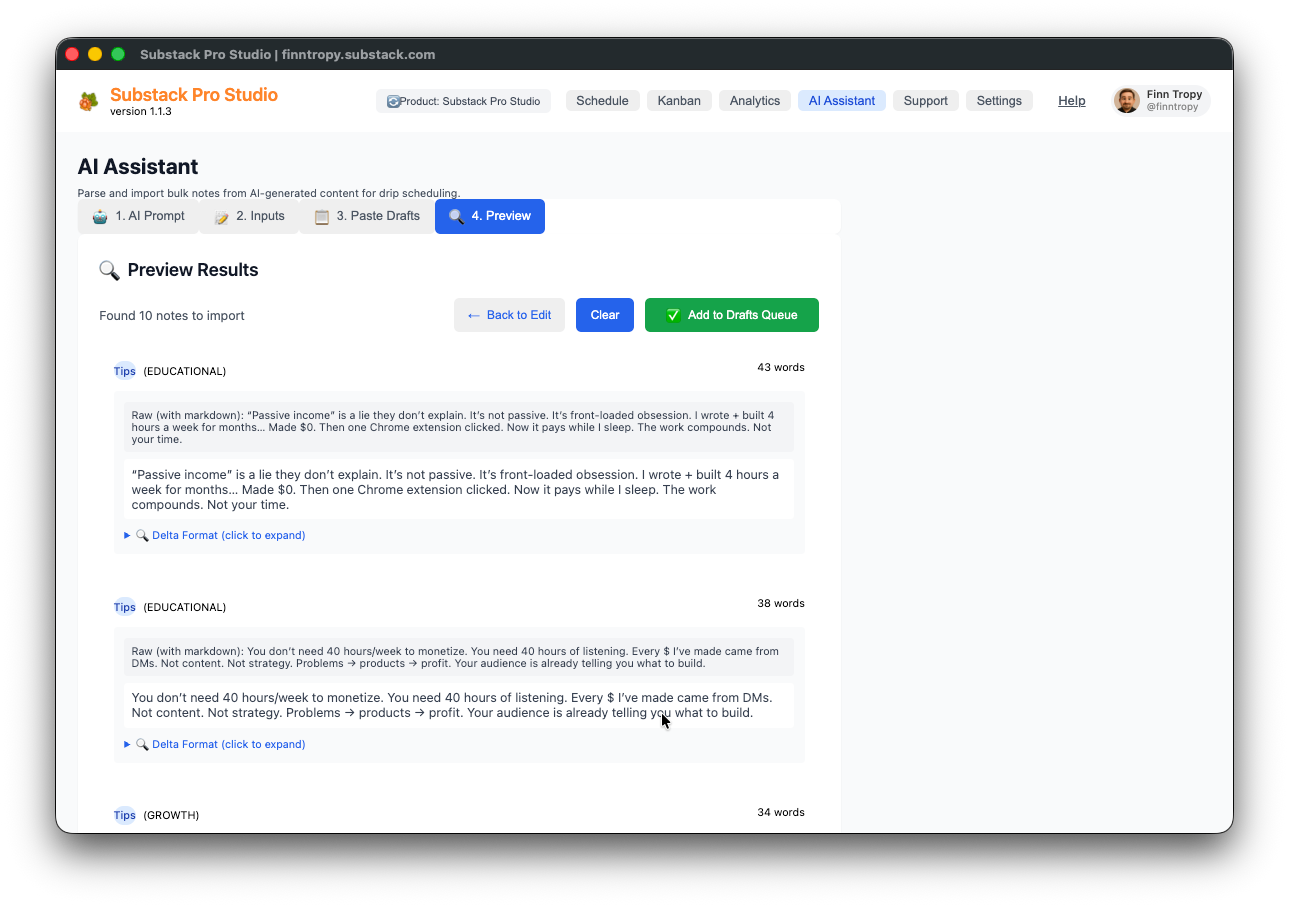
After this step, your Notes are in the Kanban Drafts column, ready to be reviewed and edited.
Other uses — Combine with Analytics exports: How To Write Notes That Convert - In One Minute (or Less)
8. Creating & Editing Notes (summary)
Detailed toolbar and scheduling behavior are documented in 4.2 Editor View.
At a glance:
Click-to-edit from Schedule or Kanban
Rich text, images (PNG / JPEG / WEBP), videos, @mentions, Substack article cards, OpenGraph link previews
Theme selection for the drip and analytics workflows
Auto-save behavior via explicit Save / ESC; Cancel discards unsaved changes
Delete, Schedule Post, Post Now as appropriate to note state
9. Advanced Note Management
On the Schedule view:
Drag & drop rescheduling — Moves Notes between slots; server drafts are updated atomically when possible on the Substack server side.
Conflict prevention and resolution — Detection plus Auto / Priority / Manual flows
Same-slot navigation — Arrow keys across Notes sharing a slot
10. Theme System & Organization
Themes organize Notes visually and power theme-aware drip scheduling.
Default themes include Tips, Inspiration, Question, Story, Opinion, and News—each with color coding.
Evergreen — Mark standout performers (often from Analytics) as Evergreen for emerald styling and drip rules that reuse proven content on a controlled cadence.
Use the Theme Manager to create, edit, and delete custom themes (name, color, synonyms for AI parsing, default schedule preferences).
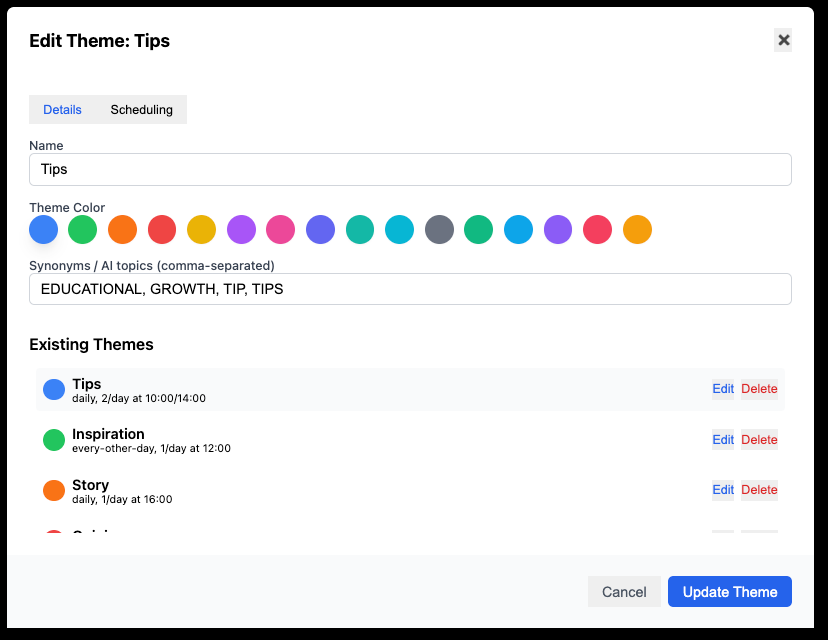
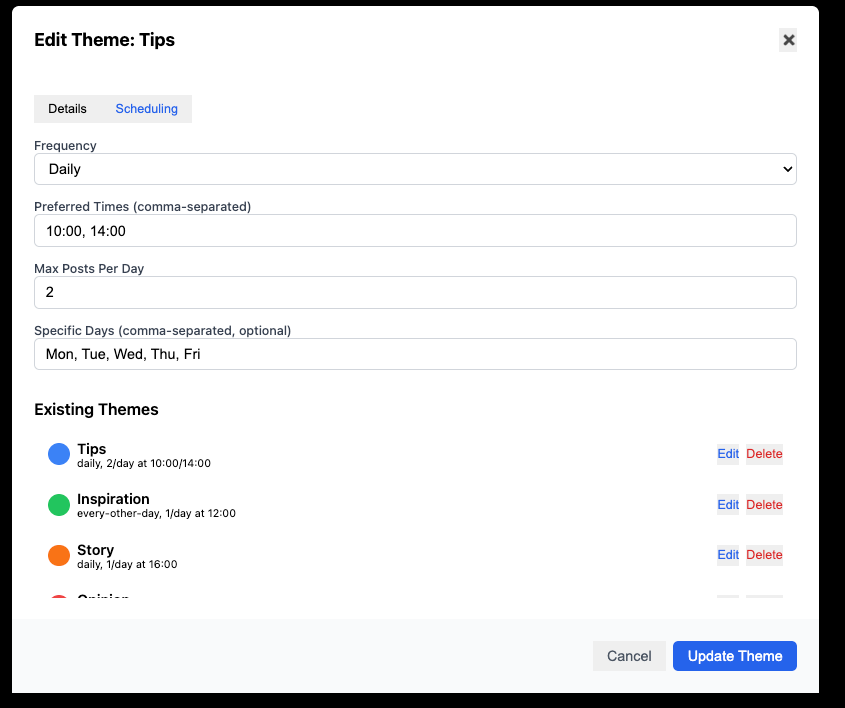
The shipped themes.yaml in the extension’s src/templates folder illustrates the schema. The app imports it at initialization; edits persist in the browser, not back into the file.
⚠️ Use Settings → Export full backup to save your custom themes before upgrading Pro Studio.
themes:
  - name: Tips
    color: 'bg-blue-100 text-blue-800'
    synonyms: ['EDUCATIONAL', 'GROWTH', 'TIP', 'TIPS']
    scheduling:
      frequency: 'daily'
      preferred_times: ['10:00', '14:00']
      max_per_day: 2
      days: ['Mon', 'Tue', 'Wed', 'Thu', 'Fri']

  - name: Inspiration
    color: 'bg-green-100 text-green-800'
    synonyms: ['INSPIRATIONAL']
    scheduling:
      frequency: 'every-other-day'
      preferred_times: ['12:00']
      max_per_day: 1
      days: null

  - name: Story
    color: 'bg-orange-100 text-orange-800'
    synonyms: ['ENTERTAINING', 'STORY','PERSONAL STORY']
    scheduling:
      frequency: 'daily'
      preferred_times: ['16:00']
      max_per_day: 1
      days: ['Mon', 'Wed', 'Fri']

  - name: Opinion
    color: 'bg-red-100 text-red-800'
    synonyms: ['OPINION']
    scheduling:
      frequency: 'weekly'
      preferred_times: ['11:00']
      max_per_day: 1
      days: ['Tue','Thu']

  - name: News
    color: 'bg-yellow-100 text-yellow-800'
    synonyms: ['NEWS']
    scheduling:
      frequency: 'daily'
      preferred_times: ['08:00']
      max_per_day: 1
      days: null

  - name: Question
    color: 'bg-purple-100 text-purple-800'
    synonyms: ['QUESTION']
    scheduling:
      frequency: 'every-other-day'
      preferred_times: ['18:00']
      max_per_day: 1
      days: ['Mon', 'Wed', 'Fri']
  - name: Evergreen
    color: 'bg-emerald-100 text-emerald-800'
    synonyms: ['EVERGREEN', 'REPOST', 'REUSABLE']
    scheduling:
      frequency: 'weekly'
      preferred_times: ['09:00', '15:00']
      max_per_day: 1
      days: ['Mon', 'Wed', 'Fri']
11. Drip Mode - Automated Scheduling
Drip scheduling releases content gradually instead of dumping it all at once—good for courses, launches, and steady audience rhythm.
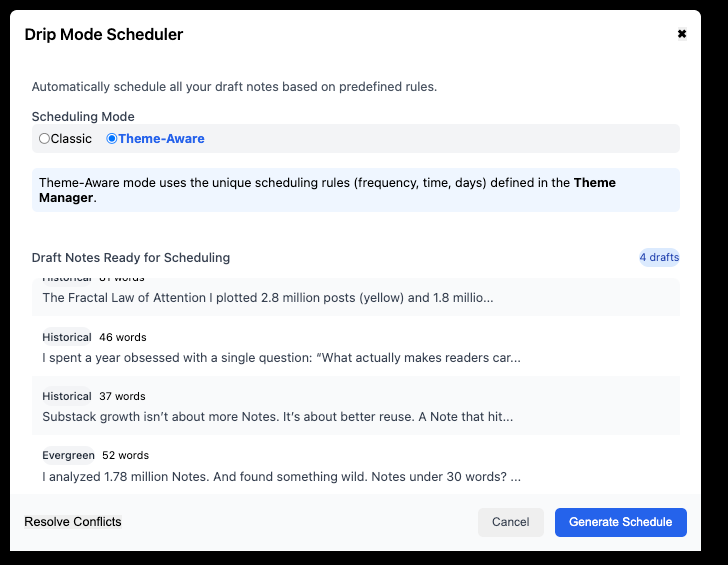
Two drip modes
Classic sequential — Schedules drafts into future slots from a default time (e.g. 10:00 AM), finding empty slots
Theme-aware (default) — Uses each theme’s scheduling rules from the Theme Manager (recommended)
Server drafts. Drip batch scheduling creates Substack server-side drafts, trigger_at so publish times are honored by Substack—not only local Chrome alarms.
⚠️ In Kanban view, dragging a note from Drafts to the Scheduled column uses theme-aware scheduling by default.
12. Historical Notes Sync
Sync pulls published Notes and metrics into Pro Studio.
Metrics — Reactions, restacks, comments, clicks, subscriber signals where available
Analytics — Powers dashboards and heatmaps
Duplicate prevention — Merges carefully when the same Note appears again
Format conversion — Substack body → editor-friendly structure (including code blocks, attachments, article cards where supported)
Links — Original posts stay reachable from the UI
Progress and errors — User-visible sync status; reliability improvements across versions 1.0.33–1.0.35
Word and character counts — Populated for synced Notes where the API provides enough detail
Dates — Publication and slot alignment merge into existing Notes so historical items land on the correct day/time based on published data after sync (ongoing refinement through version 1.0.44+)
13. Settings & Configuration
Import / Export (notes and documents)
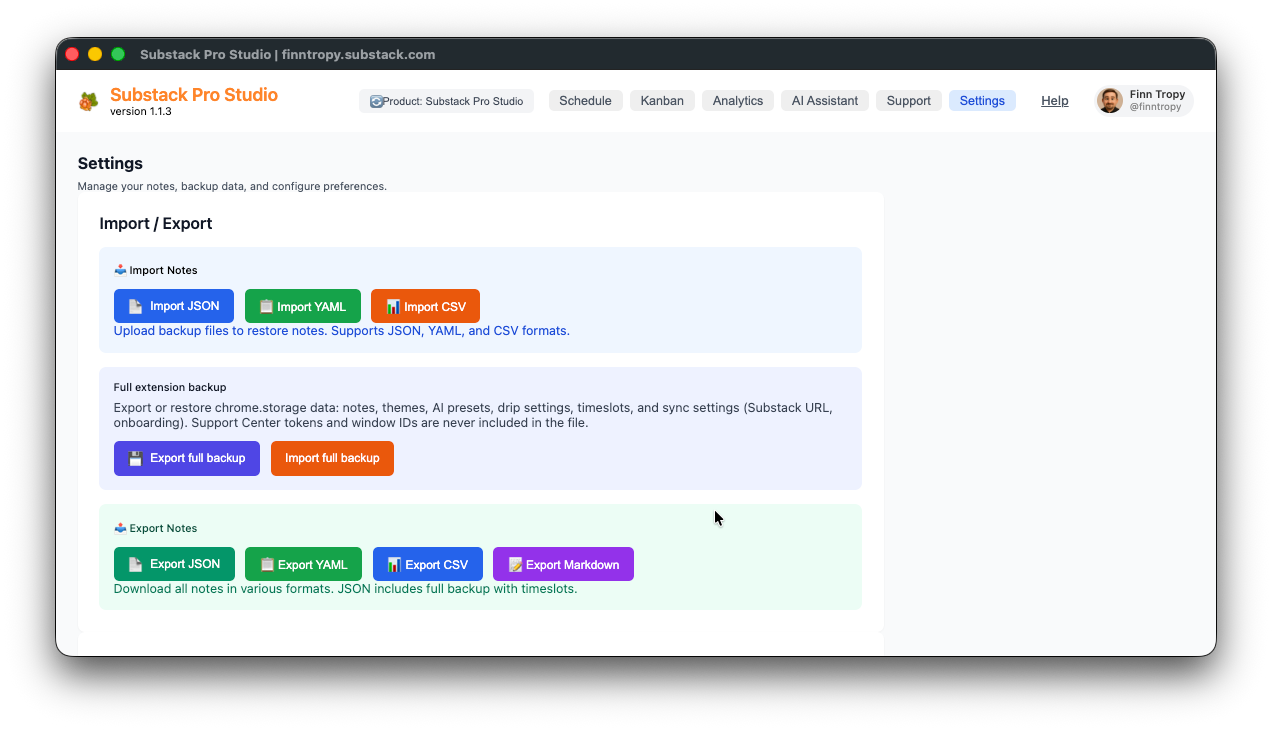
Notes backup/restore
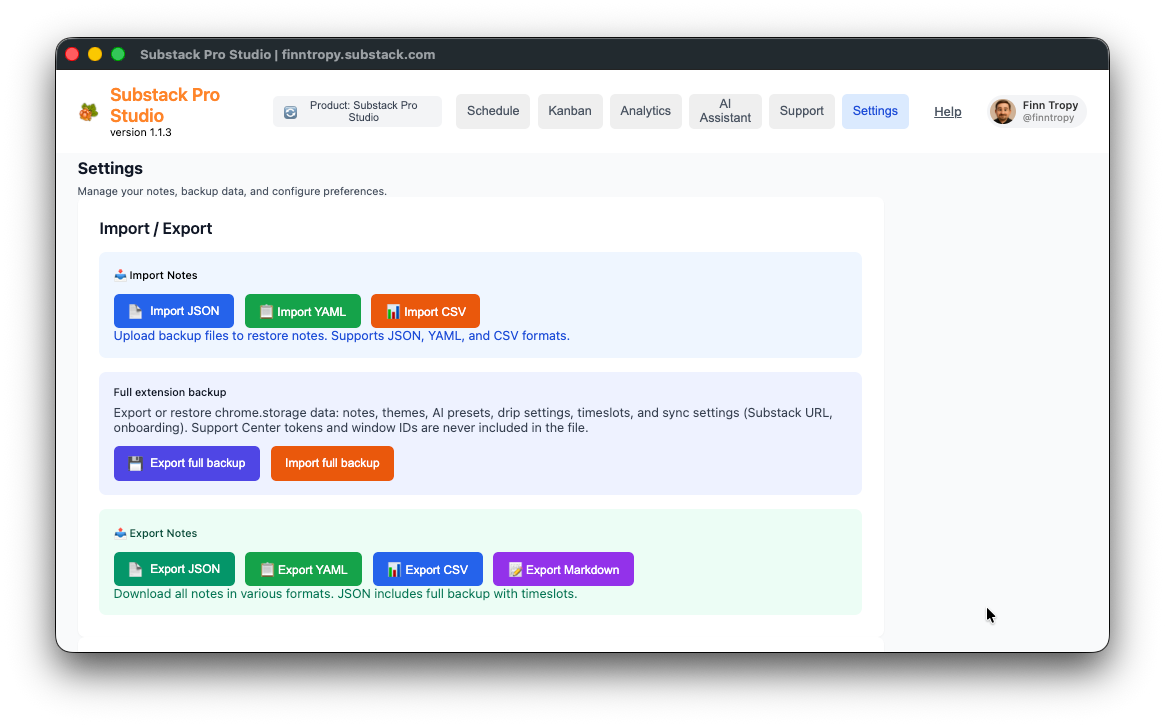
Export — JSON, YAML, CSV, Markdown (notes-oriented formats) for taking backup of your Notes
Import — Restore Notes from JSON/YAML/CSV/Markdown backup file where supported, perform a batch CSV import from other sources like Google Sheets, Notion, or Airtable.
Import JSON restores Notes and re-syncs scheduled Notes with Chrome alarms, so upgraded installs recover schedules from backup.
Full extension backup (recommended for migrations)
Export full backup downloads a single versioned JSON archive (substack-pro-studio-backup style) containing an allowlisted snapshot of chrome.storage.local and chrome.storage.sync: Notes, themes, drip / timeslot configuration, AI Assistant presets and templates, error log, acknowledged versions, support cache / last version check, and sync-side fields such as Substack URL, onboarding, profile, product variant, PostHog opt-out, and strict scheduling mode.
Never exported — Support Center auth tokens and ephemeral window identifiers.
Import full backup walks through the restore from backup workflow:
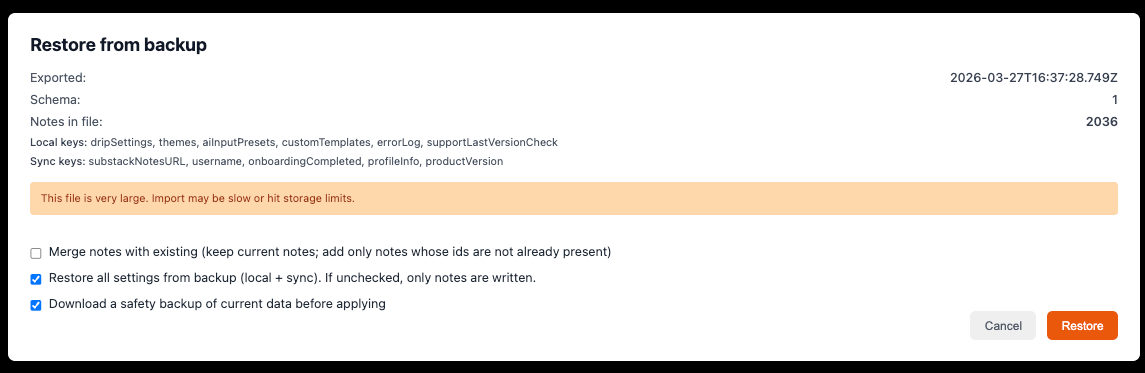
Preview — Schema, counts, which keys are present
Options — e.g. merge notes by id (keep existing; add only new ids), restore all settings vs notes only
Safety backup — Optional download of your current data before overwrite. This is on by default to ensure you have a current backup.
Restore — Runs scheduled-note sync and reloads the app so every surface reads the new storage
Legacy notes JSON file — Files that are a bare array or { notes } / { data } without the new archive format import as notes-only with explicit messaging.
CSV import (bulk notes)
Import a CSV-exported spreadsheet to create many Notes at once.
The built-in Help includes a dedicated Import CSV page that explains details such as header column names and required CSV format.
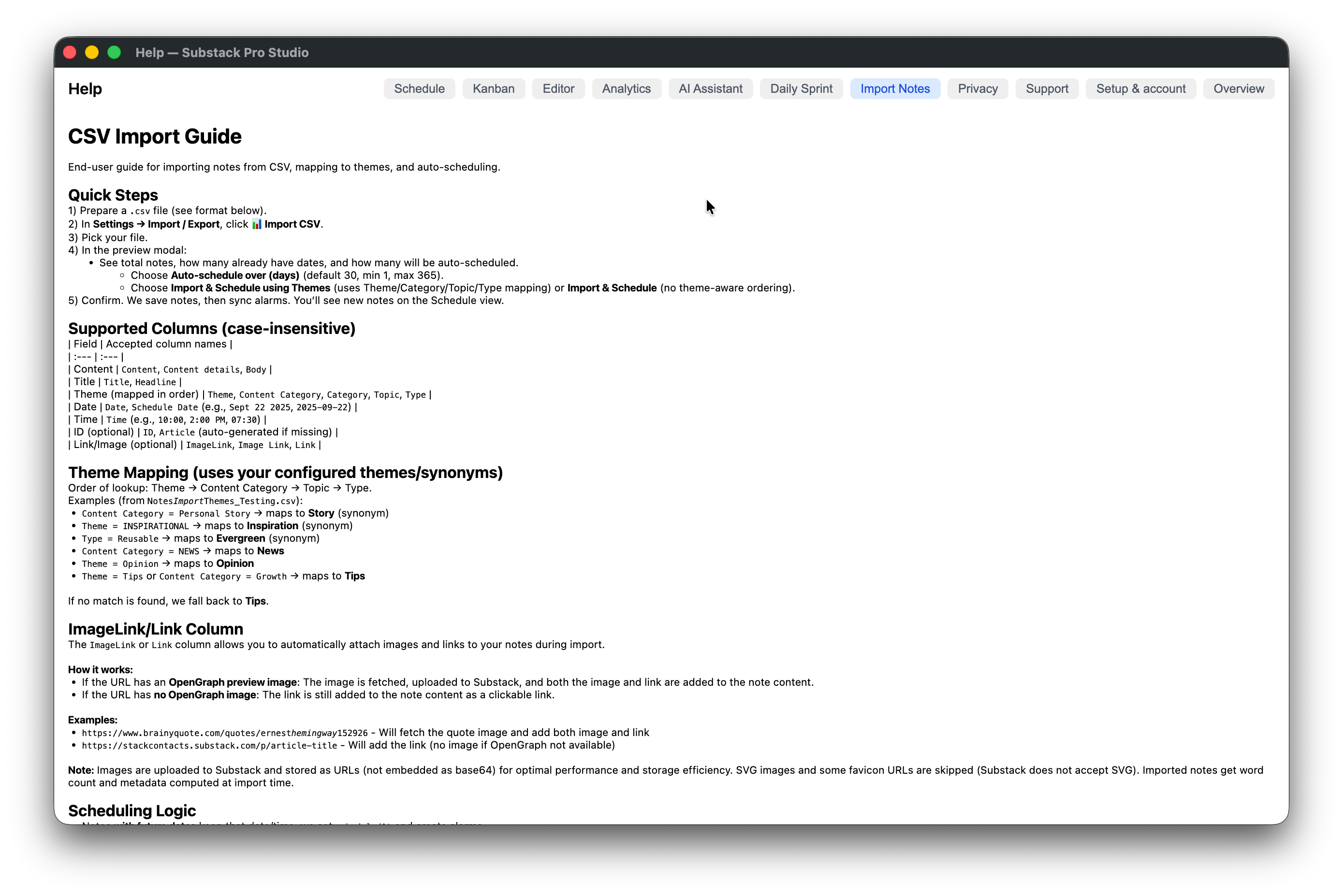
Uses your configured time slots (from Manage Slots), not hardcoded defaults
Notes with a date but no time distribute across available slots instead of piling into one hour
Literal escapes in text fields:
\n,\r,\tbecome real newlines/tabs when appropriateImageLinkorLinkcolumn — Fetches OpenGraph preview images when possible; images upload to Substack as URLs (not giant base64 blobs) for consistency
See the example Google Sheet used to test the CSV Import functionality. It has multi-line examples, notes with image links, different themes, Date / Time fields for batch Import scheduling etc.
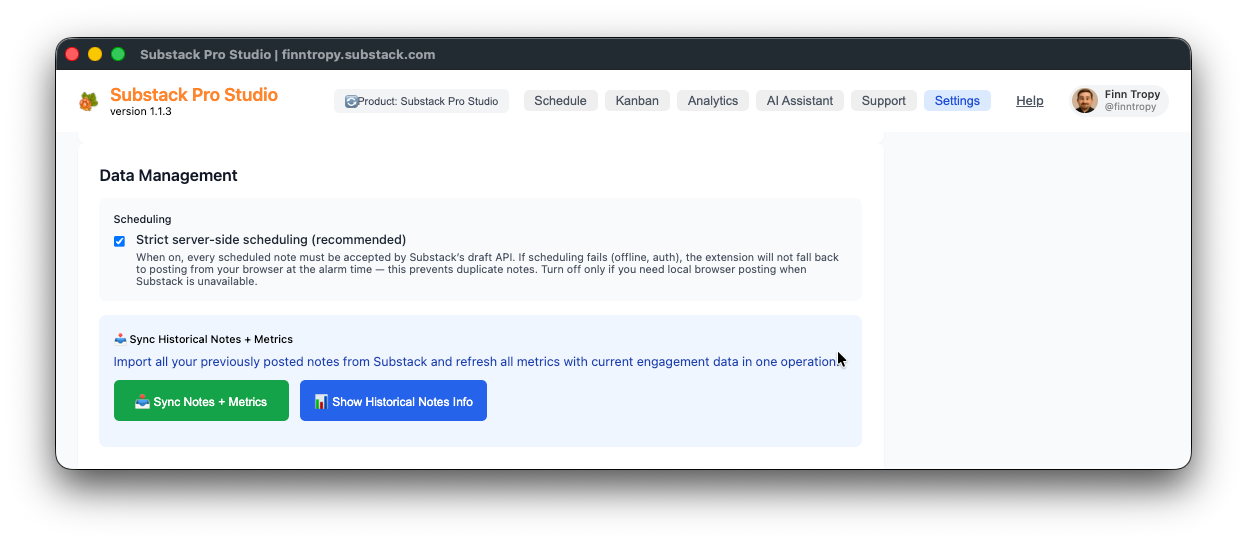
Scheduling (Data management)
Strict scheduling mode is on by default. When Substack’s draft scheduling API does not return a usable server draft, strict mode does not silently fall back to a path that could double-post live Notes.
Optional: allow local browser posting when the draft API fails (under Settings → Data management → Scheduling). Use this only if you understand you are trading away some duplicate protection for availability.
Storage Optimization
Old Pro Studio versions (before version 1.0.27) stored attached images in base64 format, which took a lot of disk space. After 1.0.27, attachments are uploaded to Substack, and only URLs are stored locally, saving significant space and memory for users with thousands of Notes.
Storage optimization helps users to migrate their legacy Notes to this more efficient way of handling images.
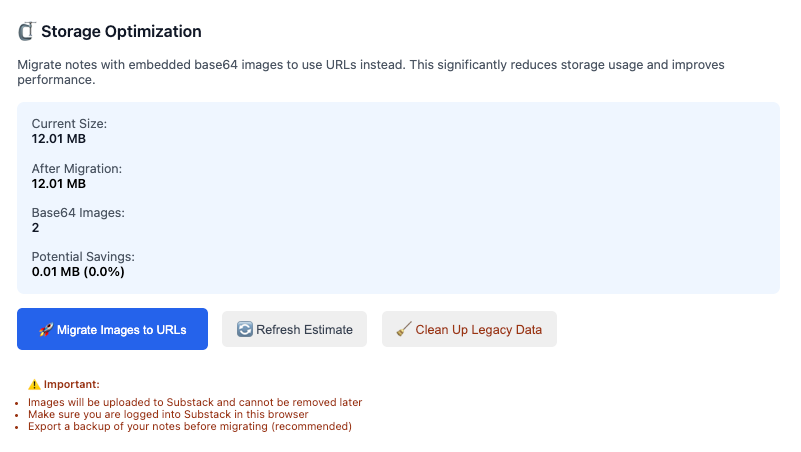
Migrate Images to URLs — Finds legacy base64-heavy images, uploads to Substack, and replaces them with links.
Refresh Estimate updates numbers.
Clean Up Legacy Data removes leftover blobs after migration.
Always take a backup (Export full backup or Export JSON) before migration.
Data management (other)
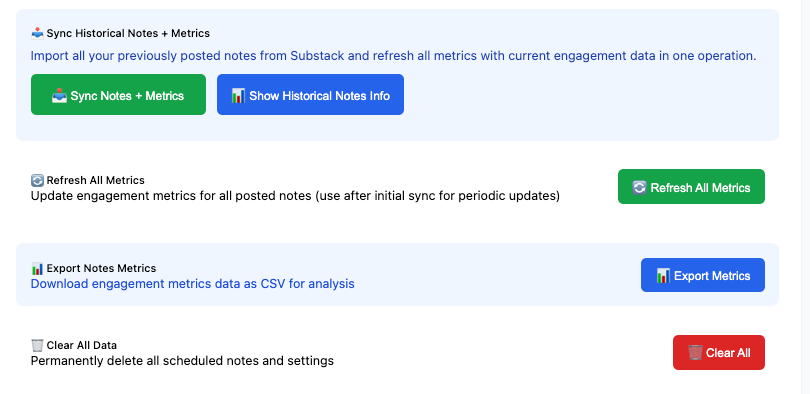
Sync Historical Notes + Metrics - will sync your existing posted Notes and related metrics to the browser local storage for analytics
Refresh All metrics - will just refresh the Note metrics, so it is a bit faster operation
Clear All Data — Full reset of all your Notes - this will delete all Notes from the Chrome browser local storage. Make sure you have a backup (use Export JSON ) before running this.
Configuration
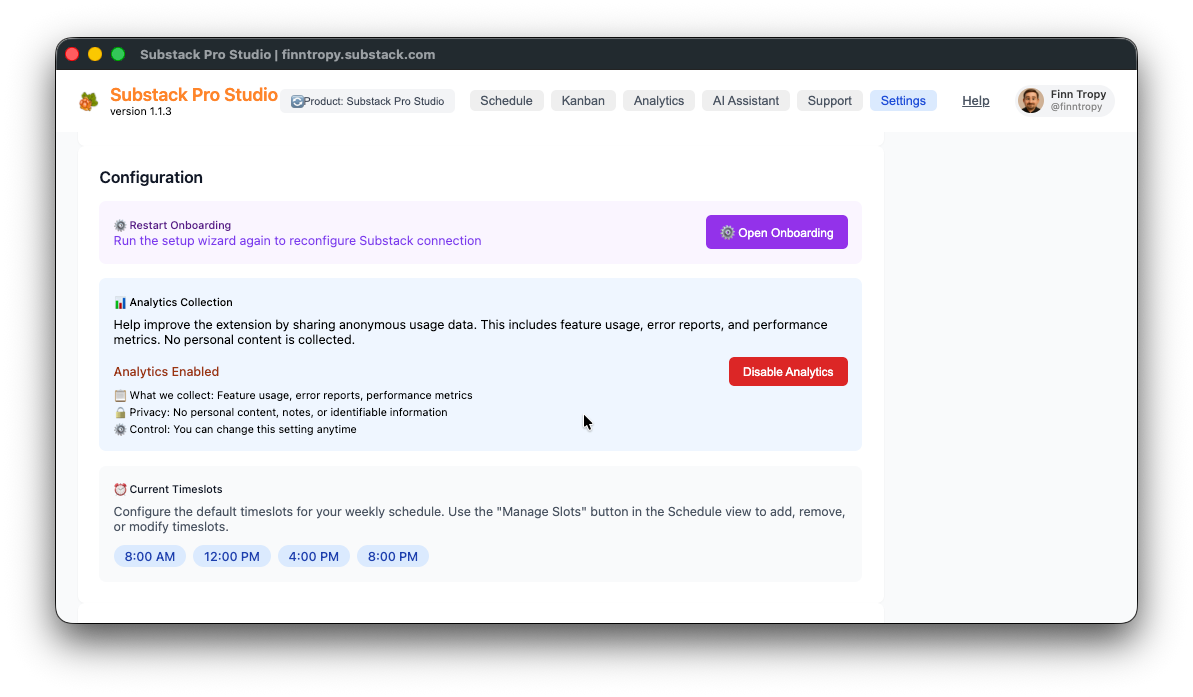
Restart Onboarding — Switch publications or recover setup
Analytics collection — Enable/disable usage telemetry. This telemetry data is used to help troubleshoot issues. No personal note content in analytics payloads per in-app Privacy policy - see Help → Privacy for details.
Current timeslots — Reference for your grid timeslots
Storage debugging
This is rarely used for troubleshooting storage issues.
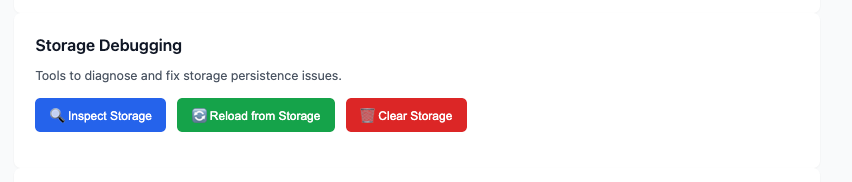
Inspect Storage — Usage vs quota
Reload from Storage
Clear Storage — Destructive; take a backup first
14. Support & Diagnostics
Support Center (evolved from simple email-only flows) supports cases, threaded messaging, image attachments, error logs, and system configuration that help to troubleshoot problems faster.
Register for the Support Center with your email to create a Support case. Below is the view where you can paste screenshots and describe the problem in more detail.
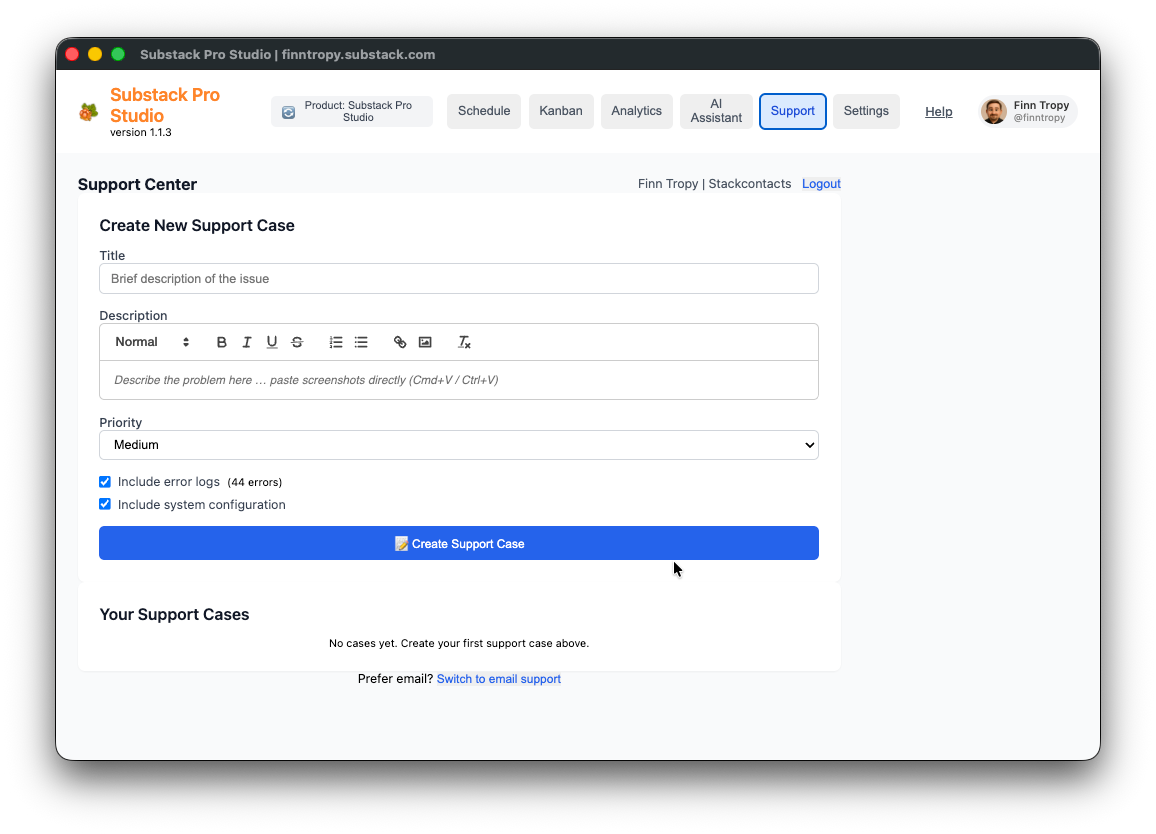
You can describe issues in a rich editor, attach screenshots, and provide context to help reproduce bugs.
15. Automated Posting System
Primary path: Substack server-side scheduling
When scheduling succeeds, Pro Studio creates or updates a draft on Substack with a trigger_at (publish) time. Substack publishes the Note at that time—your laptop can be asleep, and Chrome browser closed, as long as the draft was created successfully while you were signed in.
Chrome alarms still matter for:
User notifications near publish time
UI refresh cues
Defense in depth and migration from older “alarm-only” Notes
Local execution when strict mode is off and local browser posting fallback is enabled
Strict scheduling mode (default). If the server does not confirm a draft (or a schedule would risk a duplicate live Note), the extension fails closed: clears misleading alarms, marks the Note failed, and may notify you—rather than posting twice.
Startup and updates. On extension update and service worker start, the app reconciles scheduled Notes with alarms and, when possible, upgrades legacy alarm-only future Notes to server drafts.
Canceling a scheduled Note deletes the corresponding Substack server-side draft, if applicable, so nothing is ghost-published.
Status lifecycle — Draft → Scheduled → Posting → Posted / Failed (with strict-mode semantics above).
16. Troubleshooting & Support
Use Support (§14) for guided reports.
Quick topics
Installation — Wrong folder selected in
chrome://extensions→ “could not load manifest”Notes disabled — Enable Notes in Substack settings; the app may prompt with 404-style detection
Outages — Check status.substack.com; the app may surface outage hints
401 / sign-in — “Sign in to Substack in this browser and try again”
Stale draft / 403 “cannot edit” — The scheduler may treat the draft as stale, create a new draft, and continue rather than pretending the network alone failed
Strict vs fallback — If schedules never “stick,” confirm whether local fallback is off and whether Substack’s draft API is reachable
Duplicate posts (historical issue) — Keeping strict mode on is the recommended default; report regressions via Support with timestamps
17. Advanced Features & Tips
Keyboard shortcuts — Week navigation, in-editor navigation between same-slot Notes
Window management — Dedicated window + Help window sizing
Content strategy — Analytics segments, Evergreen, heatmap time slots
Bulk operations — Kanban, Analytics segment actions, AI clipboard workflows
18. FAQ & Best Practices
Q: Do I still need to keep Chrome open for every scheduled Note?
A: No—not when server-side scheduling succeeds. Substack holds the timed draft. Keep Chrome open if you rely on immediate notifications, or if you turned on local browser posting fallback, or during the short window while drafts are being created or repaired after errors.
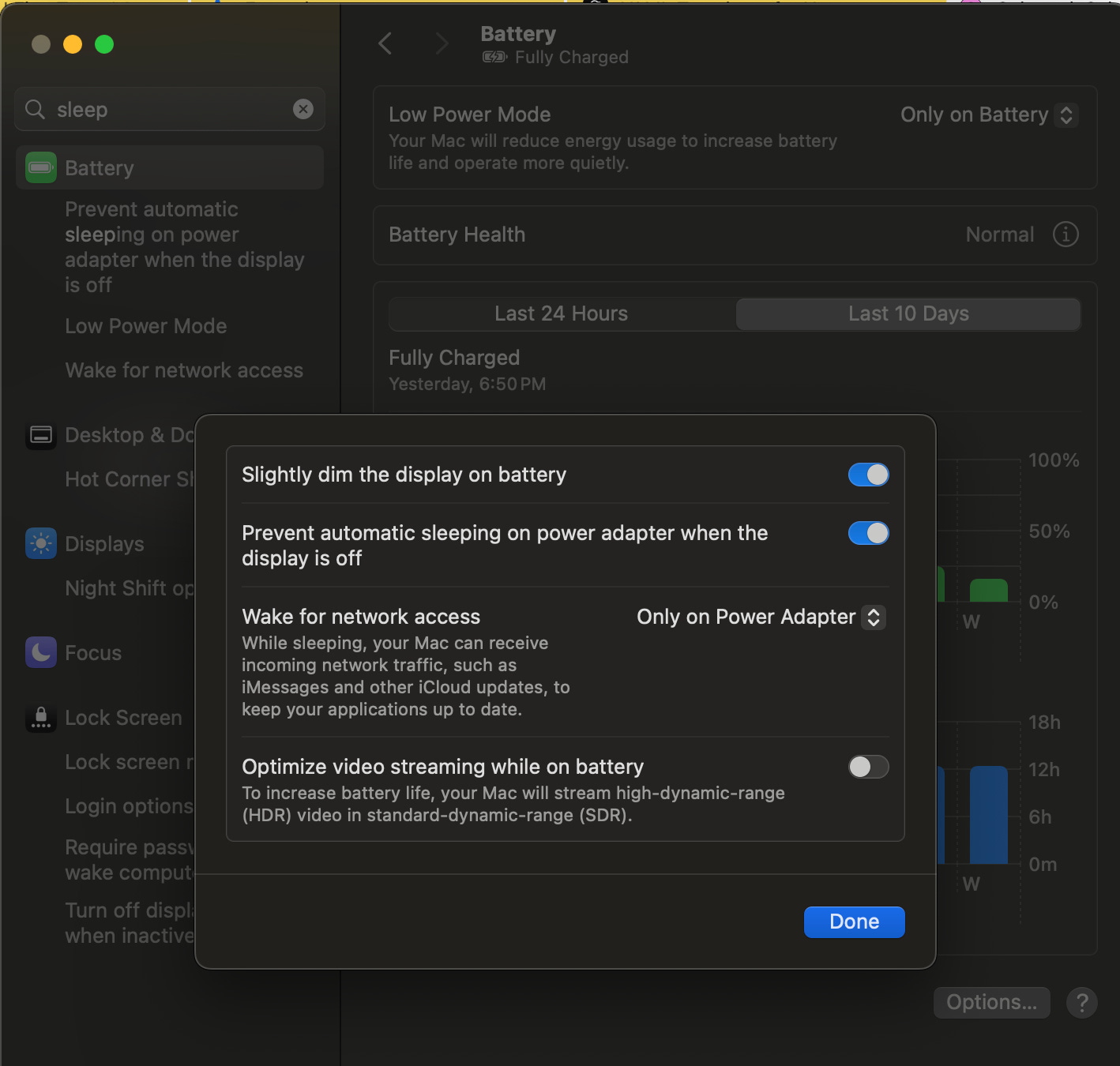
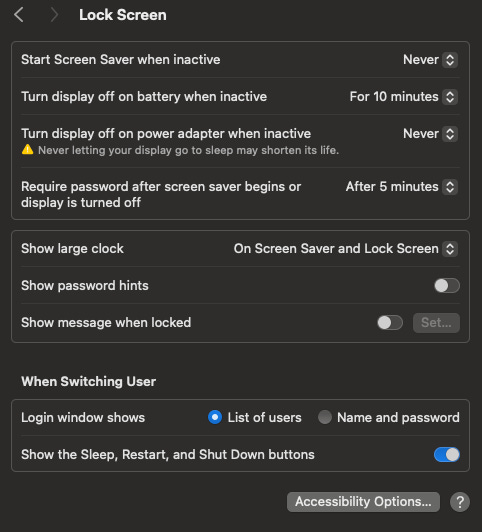
Q: How can I configure my Mac to keep the system running when I am not at my computer?
A: On macOS Sonoma 14.6.1 or later, search for sleep in System Settings. You can prevent the power adapter from turning off when the display is off. Screensaver Never (on power) also helps when you want the machine available for local fallback or notifications.
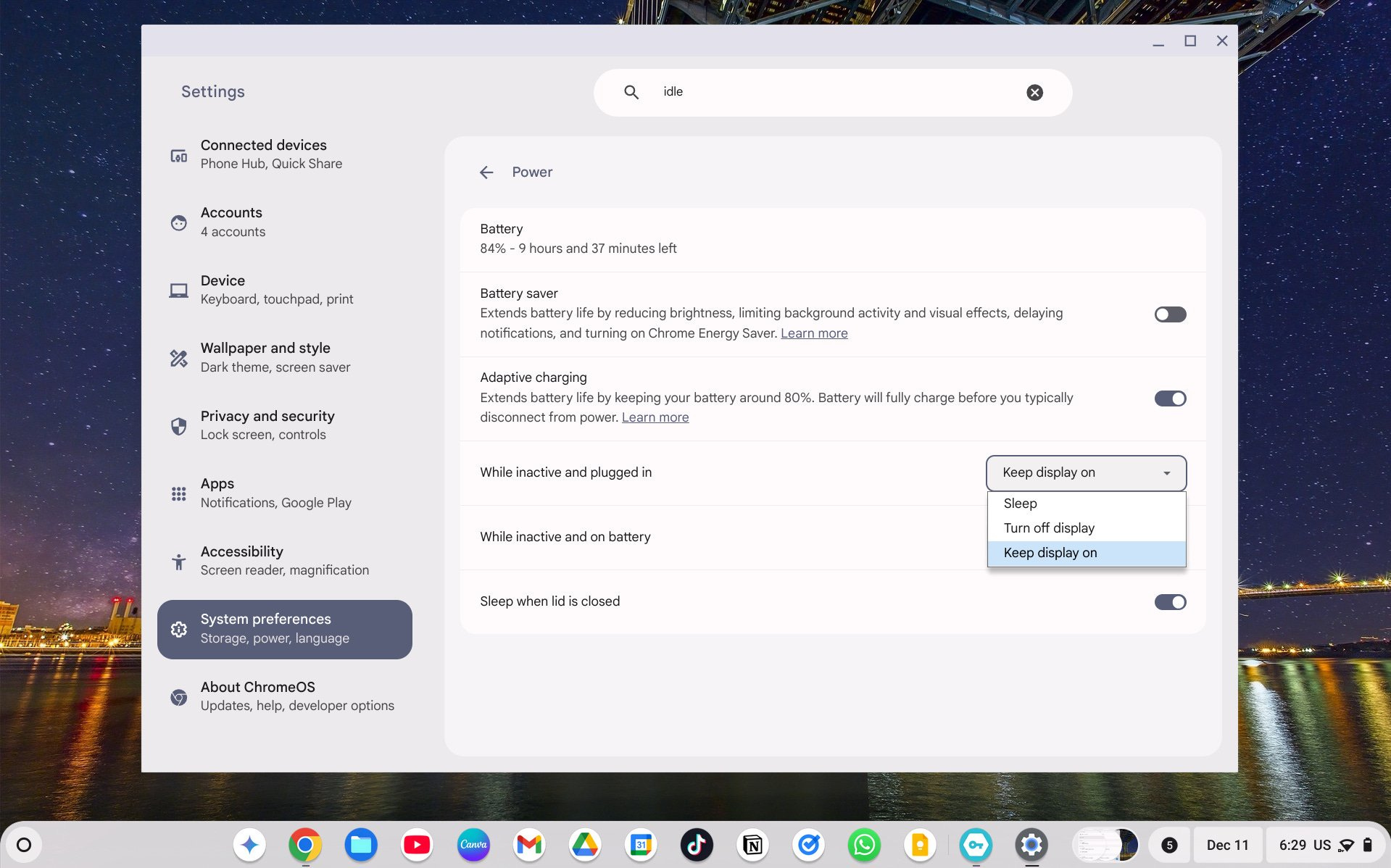
Q: I have a Chromebook laptop. How can I configure my settings?
A: Tested on Acer Chromebook Plus 514: Settings → System preferences → Power, search idle, adjust toggles.
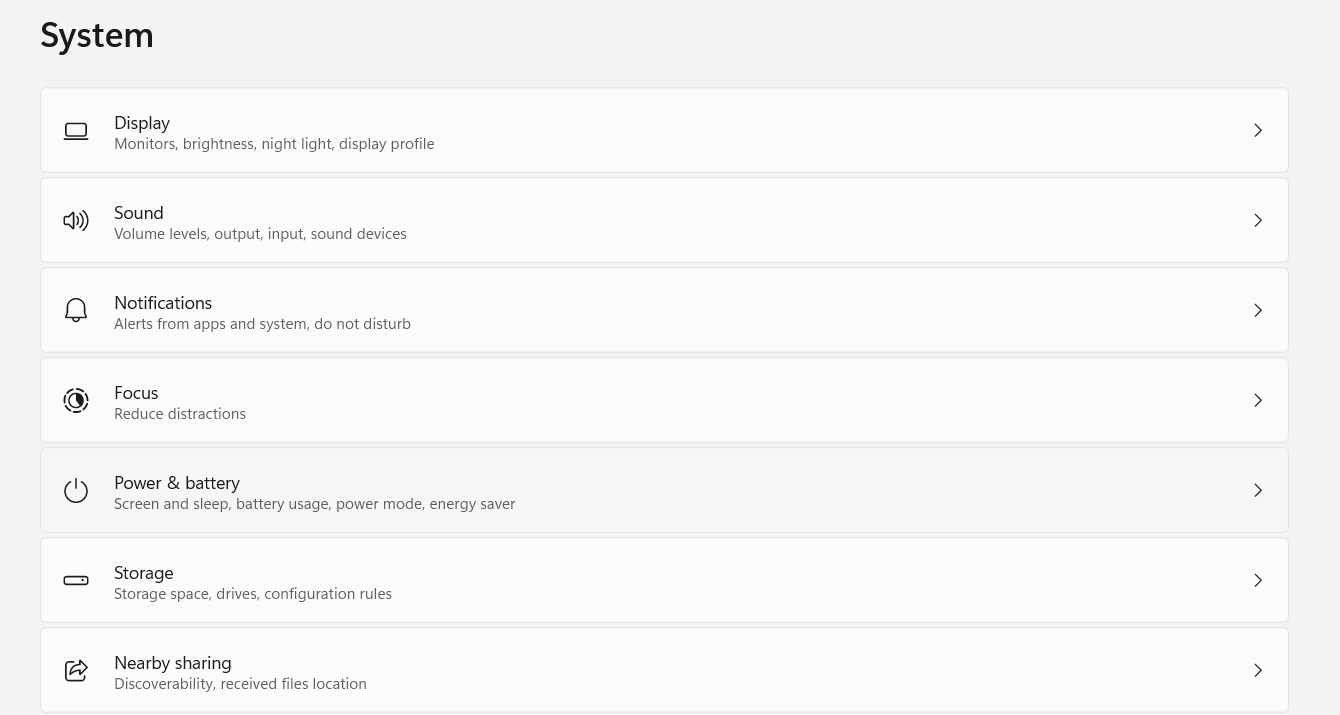
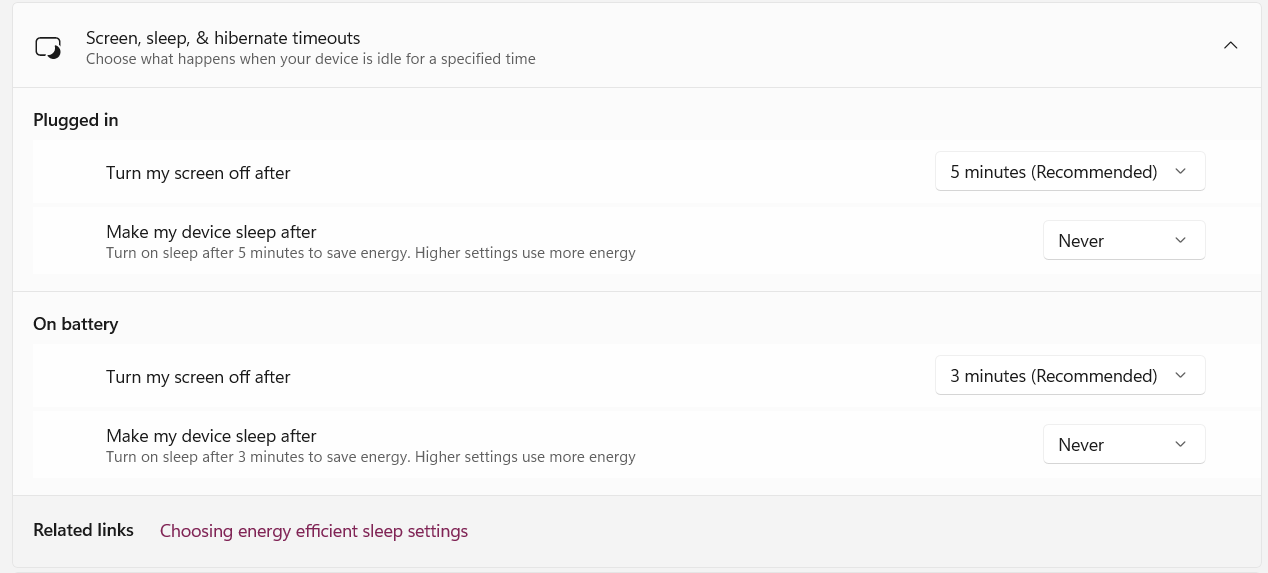
Q: How can I configure my Windows computer to keep running?
A: Settings → System → Power & battery → Screen, sleep, & hibernate timeouts
Other topics — Content strategy, scheduling cadence, theme synonyms, AI paste format discipline, performance hygiene (Storage Optimization, backups).
19. Online Help
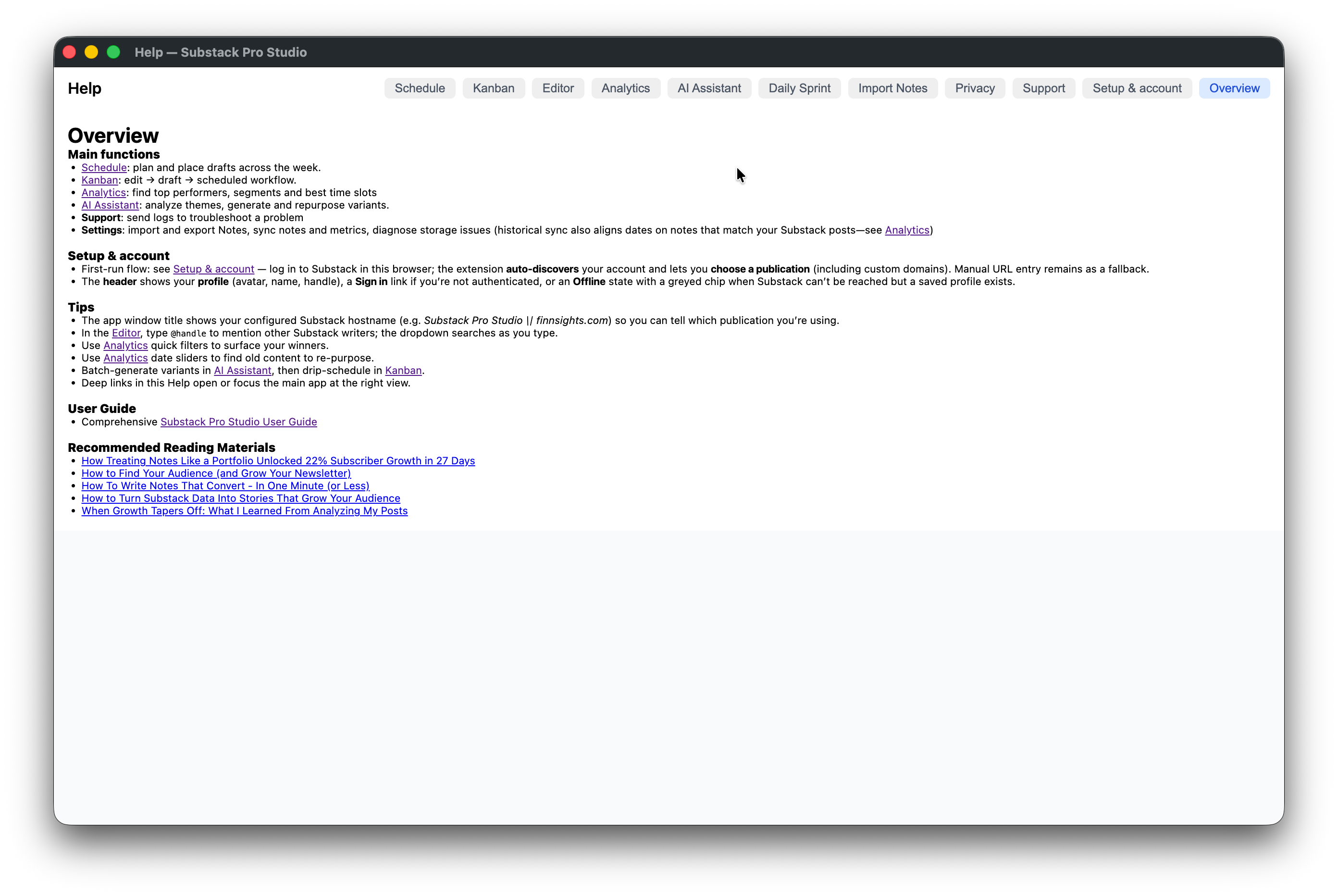
From v1.0.15 onward, Help opens an in-extension documentation window with major areas and the Privacy explanation for analytics.
20. Upgrades to new versions
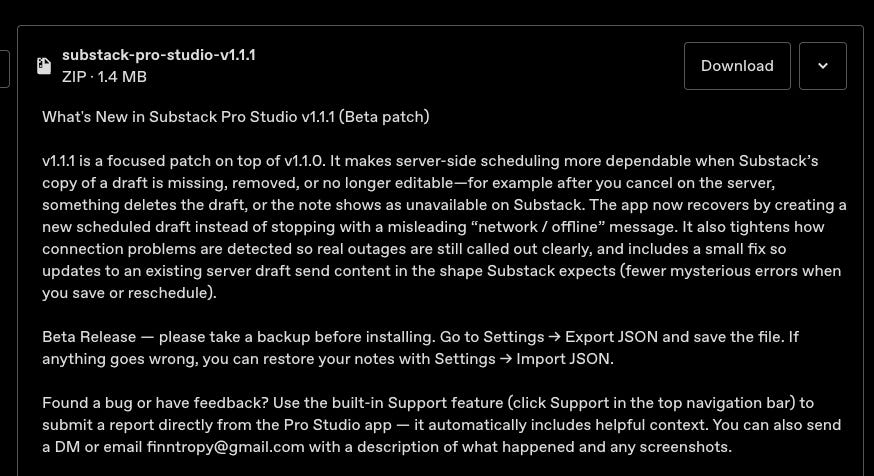
New builds ship on Gumroad; use the receipt link or go to Gumroad Library → Substack Pro Studio.
Locate the new version and click the Download button
For the existing version that you have installed, go to chrome://extensions
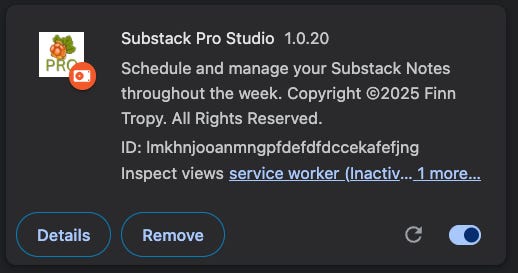
Remove will delete the extension and wipe extension storage (including all your Notes - you can recover with Import full backup or Import JSON from a previously saved backup file.
Reload the unpacked folder in chrome://extensions With the circular Refresh button, storage usually persists.
New installation - follow the instructions in the " How to Install in Chrome Browser” section
Before upgrading
Export full backup (Settings → Import / Export) for themes, AI presets, slots, and sync settings—not only Notes.
Or Export JSON if you only need Notes.
After upgrading
Import full backup or Import JSON as needed. Full restore shows a preview and an optional safety download.
Substack Pro Studio User Guide — maintained edition. Original web publication: Finn Tropy, Aug 29, 2025.